Loading From Deadheads
Another convenient way of creating travels is to load data from existing deadhead records using the Load From Deadheads feature.
Note: The Interline deadheads are identified as Swing in
the Load from Deadheads dialog box.
-
Click .
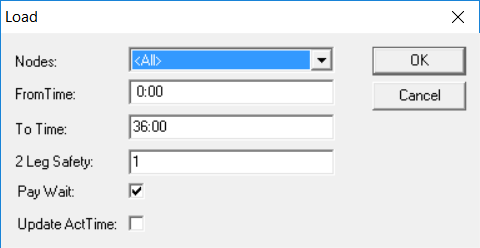
When you click Load, the Load dialog box appears.
The Load from Deadheads dialog box appears.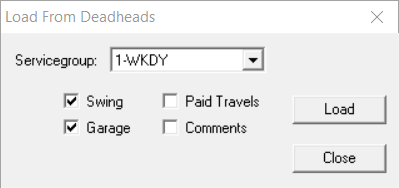
The Swing and Garage check boxes are selected by default.
-
Click Load.
If you do not have any travels, the Load dialog box appears. This is the same Load dialog box that appears with the Waits and Travels dialog box.
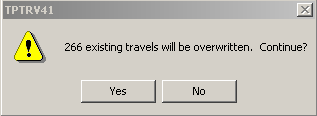
 If you already have existing travels, a message box appears asking if you wish to overwrite them.