
Editing Trip Supplementary Data
The Global Change tool aims to save you time and effort when editing large amounts of writable supplementary data.
You can edit patterns and the following options if they are displayed on the Trips tab:
- #Cars: Number of cars (Used by rail systems.)
- TripType: Trip types as defined in FX.
- Revenue: Indicates whether or not the trip generates revenue.
- On the Trips grid, select the trips whose supplementary data you want to edit.
-
Click .
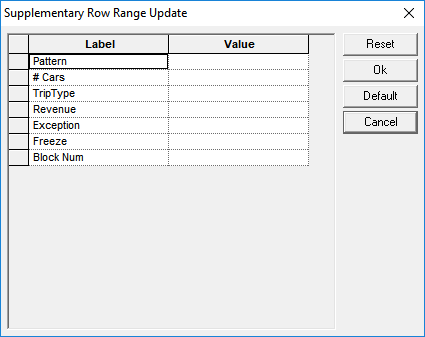
The Supplementary Row Range Update dialog appears. Only the supplementary data fields that you have selected to be edited appear in the dialog.(Additional supplementary data fields may be displayed based on your transit site requirements.)
-
In the Value field of the label that you want to edit, type or
choose the new value depending on the type of field.
Some examples of supplementary data fields are:
- Pattern - Select the pattern in the dropdown list that shows the patterns in your current context.
- #Cars - (Used for rail systems.) Number of cars in a consist. Type the appropriate number in the Value field.
- Trip Type - Type the trip type you want to assign the selected trips, for example, RG.
- Revenue - Indicates whether a trip is revenue or non-revenue. If set to Yes, the checkboxes in the Revenue field of the selected trips on the Trips tab are shown as selected and if set to No, the checkboxes are clear.
- Exception - Click the Value field to open the Exceptions dialog. Select the exceptions and days that you want to apply to the selected trips and then, click Assign.
- Freeze - Choose any of the following options in the dropdown
list:
- Freeze Invalid Trips
- Freeze Selected Trips
- Freeze Valid Trips
- Unfreeze Selected Trips.
- Block Num - Type the number of the block to which you want to assign the selected trips.
- Optional: To save the values set in the Value fields (except Pattern and Revenue) as the default, click Default.
- Optional: To clear the fields, click Reset.
-
Click OK.
To confirm the changes you have made, review your Trips grid.
Note: To apply global changes also to frozen trips, you must unfreeze the trips first.