
Generating QR Codes
QR (Quick Response) Codes are used with bus stops data that is provided to passengers for real-time schedule information.
- Click . The Extended FX Data Tool appears.
- In the Service list, choose the service you want. The default is set at <All> for all lines.
-
To select more than one Service, choose
<Custom>.
The Select Services dialog appears.
-
In the Extended FX Data Tool dialog, select the Generate QR Codes option.
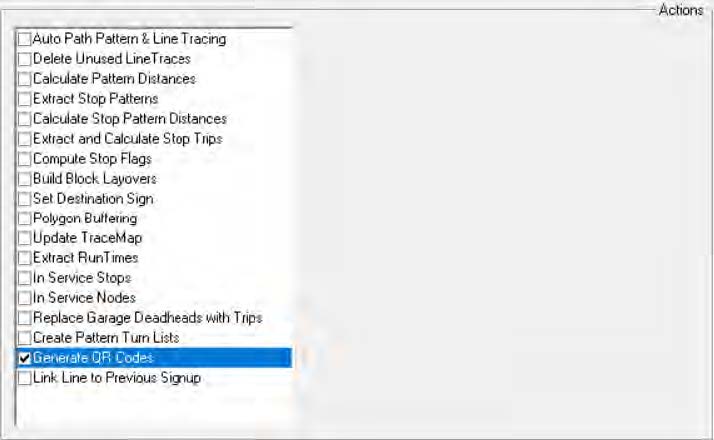
- Click Execute.
- Click Close.
Note: QR Codes that are generated in Trapeze FX can only be used
with Trapeze INFO products.