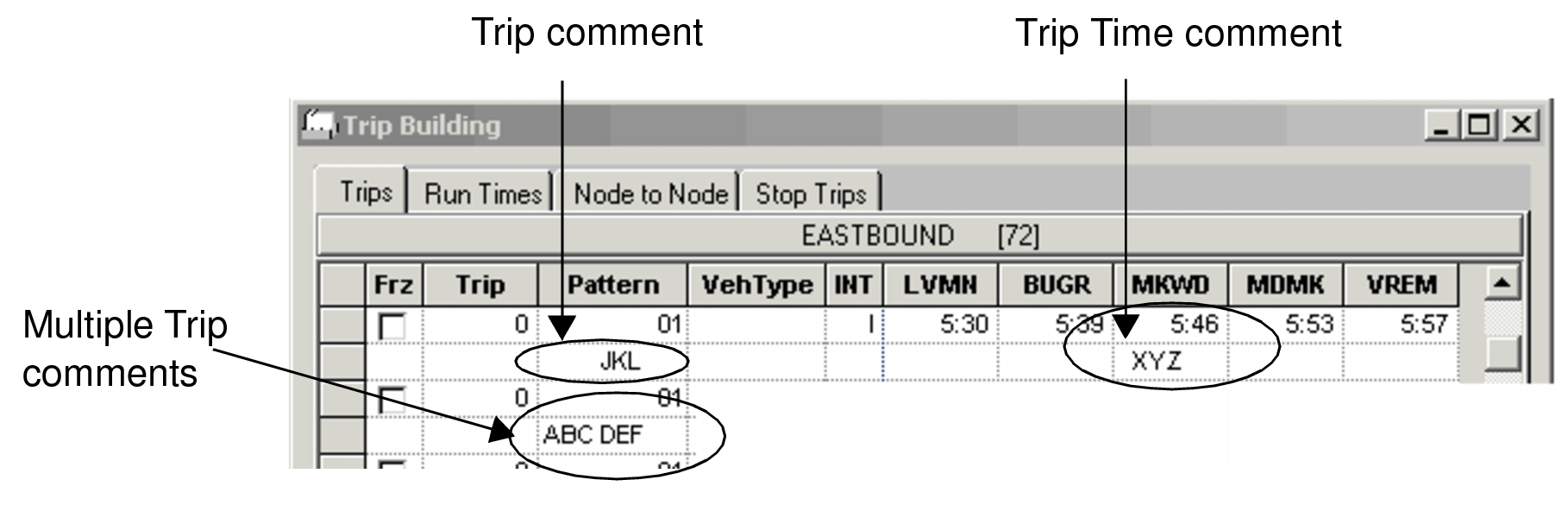
Adding Comments Directly to the Trips Grid
You can add comments to trips using the Comments tab. This Procedure is similar to Previously Defined Comments.
- On the Trips tab of the Trip Building screen, select the trip to which you want you want to add a comment.
-
Click theEdit Button:
 The Edit dialog appears.
 -
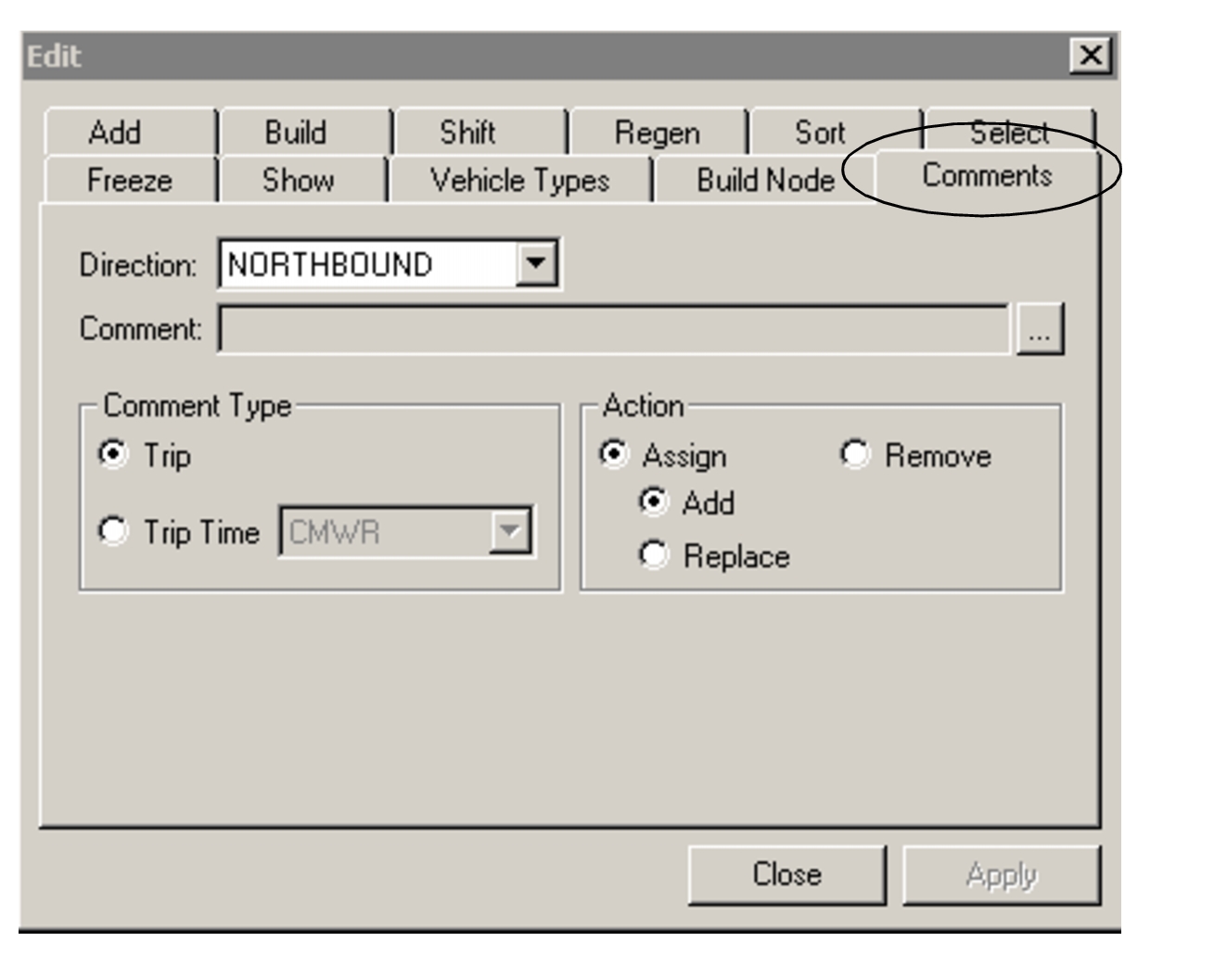
Click the Comments tab.
The direction of the selected trip appears by default in the Direction drop-down list.
- Optional:
Perform one of the following steps:
- To apply the comment to a whole trip, select the Trip option.
- To apply the comment to a specific time, select the Trip Time option. In the drop-down list beside it, select the node associated with the time you want.
-
In the Comment field, click the
ellipsis button:

The Comment dialog appears.
-
Click Add.
The Select Comment dialog appears. with the Comment dialog remaining open in the background.
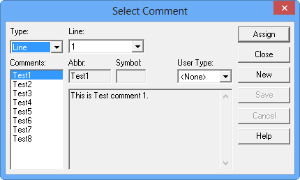
- In the Type drop-down list in the Select Comment dialog, select Line to apply the comment to the line in the current context.
- To apply the comment to all the lines, select Global. In the Line field, the line of the selected trip appears by default.
- In the User Type list, select the appropriate user type.
- To apply a previous comment, select a comment abbreviation from the Comments list.
- Click Assign.
- Optional: To arrange multiple comments assigned to a trip in a desired sequence in a report, click the Move Up or Move Down buttons in the Comment dialog as necessary.
- Click Close.
-
On the Comments tab, click Apply.
The abbreviation of the comment appears in the field in the Pattern or Node column of the selected trip depending on the type of comment you selected.
- Click Close.