
Adding Exceptions
You can add exceptions to trips to operate under specific conditions.
-
Click .
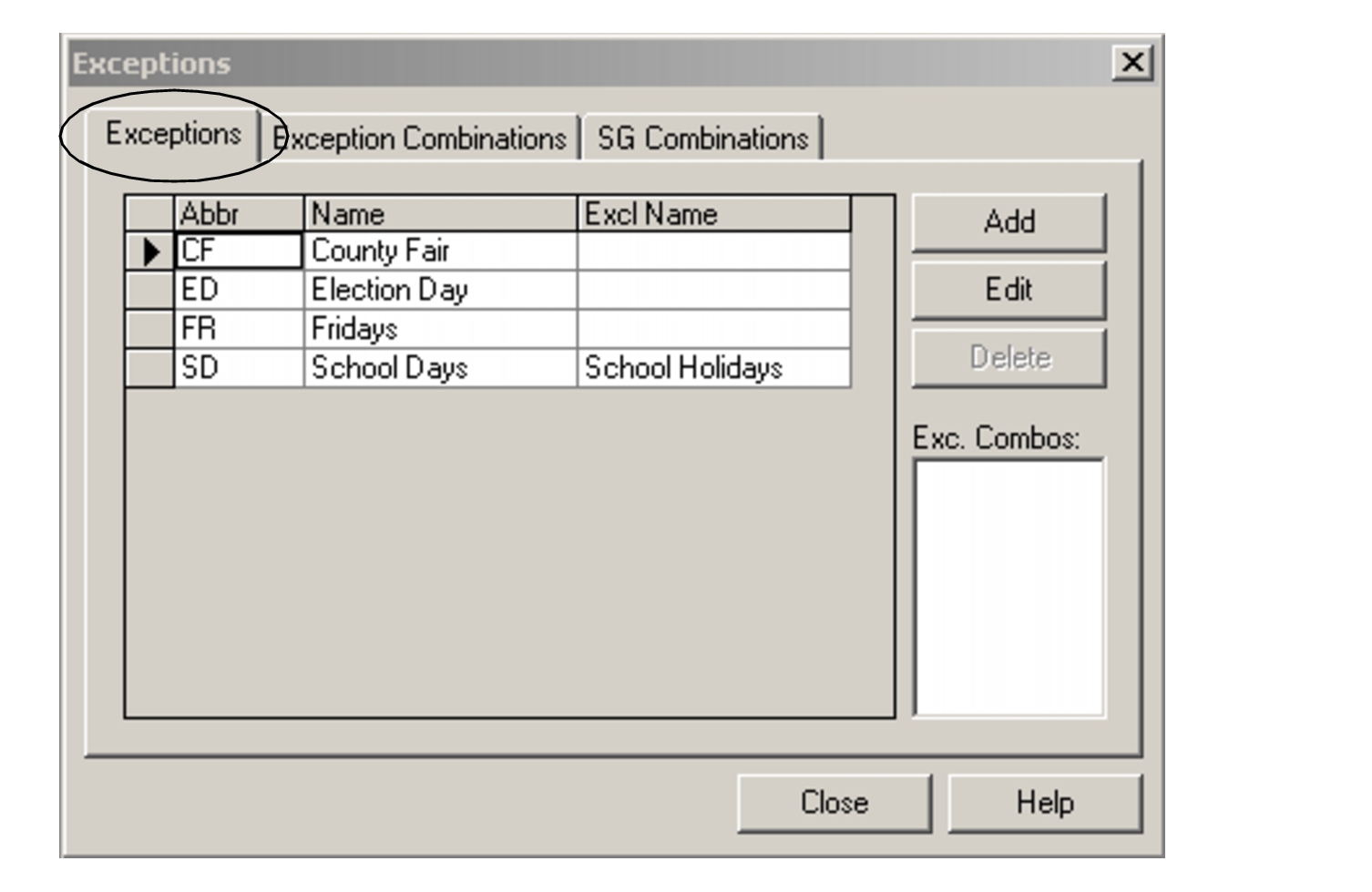
The Exceptions dialog appears.
-
On the Exceptions tab of the Exceptions
dialog, click Add.
The Add dialog appears.
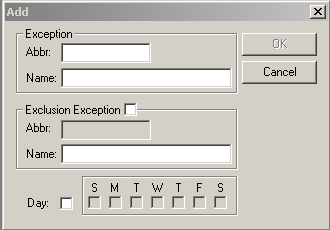
- In the Abbr field of the Add dialog, enter the abbreviation of the exception.
- In the Name field, enter the full name or description of the exception.
- Optional:
To create a Day exception, select Day.
The check boxes under the names of the days of the week are activated.
- Optional:
To create an Exclusive exception, select Exclusion
Exception.
The abbreviation of the opposite exception (preceded by a # symbol) automatically appears in the Abbr field of the Exclusion Exception frame.
- In the Name field, type an appropriate name or description of the opposite exception.
- Optional:
To associate exceptions with individual agencies, select an agency from the
Agency
drop-down list.
The exceptions associated with the selected agency are automatically displayed. If you have only one agency, the exceptions for that agency are displayed and if the user creates a new exception, it is automatically associated with that agency. (This field only applies if you are in a multi-agency environment.)
- Click OK.
- Click Close.