
Editing Supplementary Data for Stop Patterns
View and edit supplementary data for the selected sequence of a stop pattern.
- On the Stop Patterns tab, place the cursor on any field of the stop pattern you want in the right grid.
-
Click or right-click. From the shortcut menu, select Edit
Supplementary Data.
The Edit Supplementary Data dialog box appears.
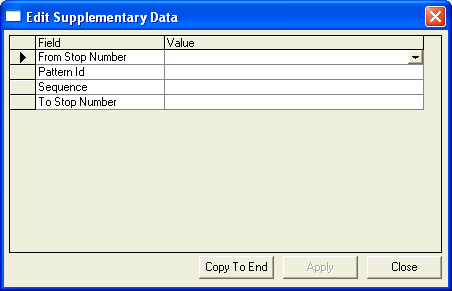
- Edit the values as required.
-
Click Copy To End.
The system copies all supplementary data from the selected stop to all stops that occur to the end of the pattern.
- Click Apply.
-
Click Close.
Note: There is no supplementary data for the last stop on the pattern.