
Moving Trips to Another Line Group
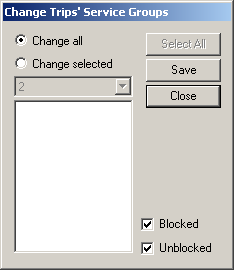
To move trips to another line group, use the Change Trips’ Line Groups dialog box.
-
Perform one of the following steps:
- To move all the trips within the selected line to the line group, select the Change all option.
- To move selected trips only, select the Change selected
option. From the Trips on Line Groups frame, choose the trips you
want to move. To select all trips within the selected line, click Select
All.
The Blocked and Unblocked check boxes are selected by default.
- Optional: To move blocked or unblocked trips only, clear the Blocked or Unblocked check box accordingly.
- Click Save.