
About the Address Matcher Dialog Box
The Address Matcher dialog box has two display areas and a status bar.
The following graphic shows the Address Matcher dialog box with some sample matching search results.
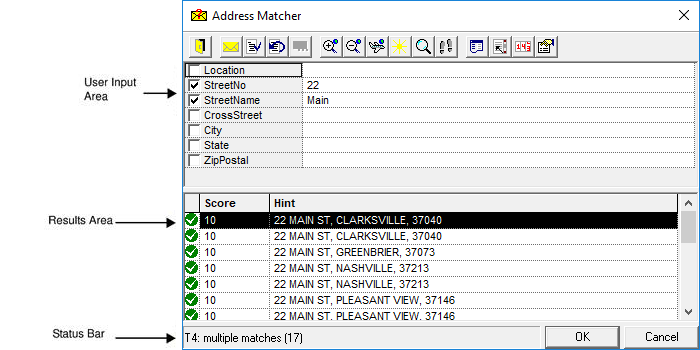
User Input Area
The user input area displays information transferred from the address box. This is the address information typed by the user, for example, street number and street name. A check mark beside each component of the address indicates that the address component was used as search criteria.
Results Area
The results area lists possible address matches derived from user input. By default, these possible address matches are ranked by score where the lower the score, the higher the ranking and the greater the likelihood of an exact match. (Scores are based on address matching parameters.) The Hint column lists the full address of each possible match.
Status Bar
The status bar at the bottom of the Address Matcher dialog box indicates how many matches were found by the filters used.
The number in parentheses is not necessarily the same as the number of matches shown. If five matches are found, only two may be shown.

Viewing the Details Frame
The Details command lists detailed information on addresses in the results area of the Address Matcher dialog box in a new pane.

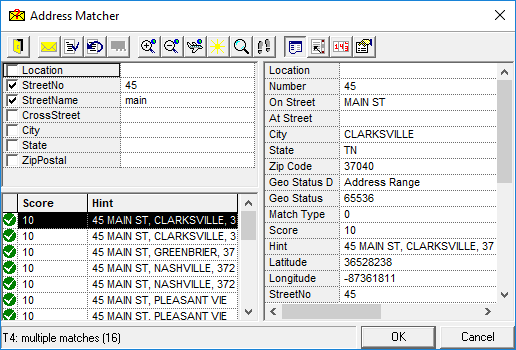
To transfer address information displayed in the Details pane to the results area, click the Show Details button, and then double-click the appropriate information label in the details area.