
Defining Barriers
A barrier is a boundary that blocks off travel within or between specific areas.
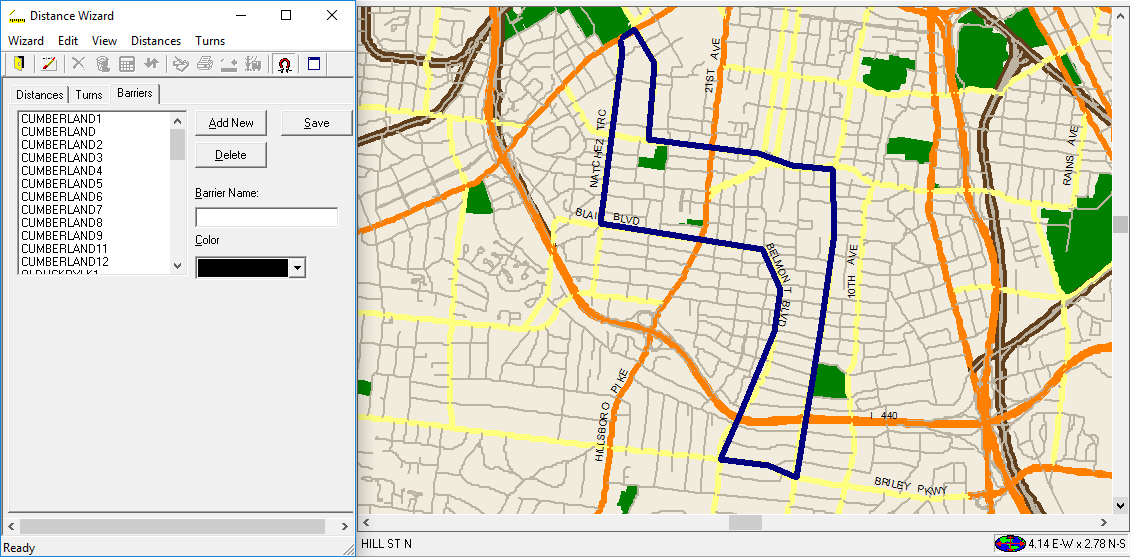
It is important to define barriers on your system map so that the system can measure distances and time travel more accurately as well as navigate routes to get around the barriers.
Before you plot a barrier, decide where the barrier is to start and end. To be as accurate as
possible, make sure you get a good, close-up view of that area on your map.
- Click .
-
On the Distances tab, under method, select
Straight.
You must choose this method when viewing or defining barriers.
- Move the mouse pointer to the spot on the map where the barrier begins.
-
Hold the SHIFT key down and click once.
The first barrier point is plotted on the map.
-
Hold SHIFT and click for each additional point added to the
map.
The plotted points are connected as they are plotted.
- Optional:
To delete the previously plotted point, click the Remove Last
button:

- After all the points have been plotted, release the SHIFT key.
- Click the Barriers tab.
- In the Barrier Name field, type the name of the plotted barrier.
-
In the Color field, click a color for the barrier.
Be sure to choose a contrasting color that allows you to easily distinguish the barrier from the background color of the map.
- Click Add New.
- Click Save.