
Typing Latitude and Longitude Manually
Latitude and longitude can be typed manually and then geocoded using the Street Wizard.
Warning: This feature should be used with caution. It may damage the data
consistency if invalid coordinates are typed.
- Click the Geocoder tab.
-
Double-click either the Longitude field label or the
Latitude field label.
The Longitude and Latitude fields are activated to write mode and the Entering Coordinates Manually frame appears.
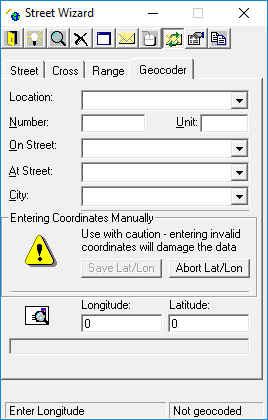
-
Type the Longitude and Latitude
coordinates.
If your map is within North America, prefix the longitude with a negative sign (-) .Manually typed coordinates appear in red, indicating that they have not been geocoded.
-
Click Save Lat/Lon.
Saving the coordinates prompts the system to check if the coordinates are within the map area.If the system determines the coordinates are beyond the map area, an Out of current Span message appears with the distance out of range.
- Click Yes on the message to geocode the coordinates.
-
If applicable, do the following:
-
Click the Zoom to current selection button:

The geocoded point flashes on the map if the zoom level is set to show it appropriately. Otherwise, the coordinates are beyond the map area. -
If the coordinates are beyond the map area, click the Zoom
Out button for a more expansive view:

To cancel this procedure, click Abort Lat/Lon. -
Click the Zoom to current selection button: