Place text in quotation marks for exact match search results.
Selecting Segments in Segment Mode
In Segment mode, you can view and edit information of one or
more selected segments.
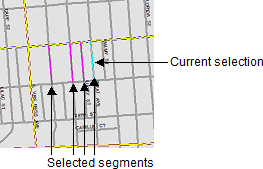
If you select one segment, the segment appears in cyan (a shade of blue) on the map. If
multiple segments are selected, all segments except the current selection appear in
magenta. The current selection appears in cyan, as shown in the following image:
When multiple segments are selected, the current selection can be changed. Information
for the current selection appears when the Properties dialog box is
opened.
Ensure the Select button is pressed by performing one of the
following steps:
Right-click the map, and then click Segment Mode.
Click Map > Segment Mode.
On the toolbar, click the Select button:
Perform any of the following steps on the map:
To select multiple segments, press SHIFT and click the
segments. If a segment that is already selected is clicked, it remains selected and
becomes the current selection.
To remove a selected segment from the selected segments, press
CTRL and click the segment.
To select all segments with the same street name, press and hold
CTRL and SHIFT, and click a segment with
the street name. A segment's street name is determined by its namId property
value.
To change the current segment when multiple segments are selected, press
SHIFT and click the current segment.
If the Properties dialog box is open, the current selection can be
changed using the scroll bar in the dialog box.