
Editing and Deleting Held Data
You can choose to edit or delete the held data. You can also remove the hold on selected held data and data that is not fixable.
-
On the Edit tab showing the search results from the Held Trips
-Start screen, double-click the trip that you want to
edit.
The Edit tab opens with the details of the selected trip.
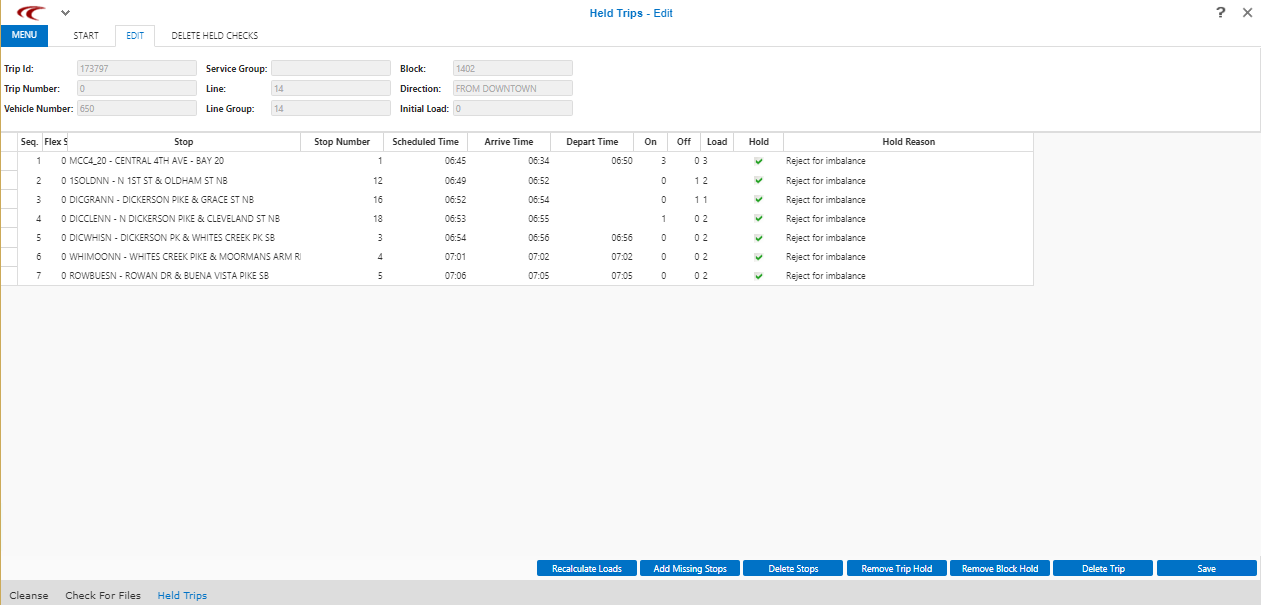
- Optional: After reviewing the data and you want to recalculate the load data, click Recalculate Data.
-
To add stops of a trip from the scheduling data stored in Trapeze FX/PLAN that
are not displayed, click Add Missing Stops.
Perform this step when the data of a selected trip may not show all the stops that you want to view.
-
To sort the held trip data, click the header of the column by which you want to
reorder the data.
The Sequence column displays the numbers of the stops on the selected trip. By default, the stops in a selected held trip are shown in proper sequence. When you resort the data, the numbers in the Sequence column help you determine the sequence of stops.
-
Perform the applicable step to remove the hold on specific data:
-
To remove the hold on the edited data, clear the Hold check box for the selected record. (See the green check marks in the Hold column.)
- To remove the hold on a held trip, click Remove Trip Hold.
- To remove the hold on all held trips in a block, click Remove Block Hold.
- To remove selected stops from the held trip and the database, click Remove Stops.
-
-
To delete trips, select the trips you want to delete and click
Delete Trip.
A message prompts you to confirm the delete action. Click OK.
You are brought back to the Held Trips-Start tab.
-
To delete stops, select the stops you want to delete and click
Delete Stops.
A message prompts you to confirm the delete action. Click OK.
- Click Save.