
Viewing Held Data
You can view the held data for possible editing or deletion if necessary.
-
On the main menu screen, click Held Files in the
Import column.
The Held Files - Start screen appears.
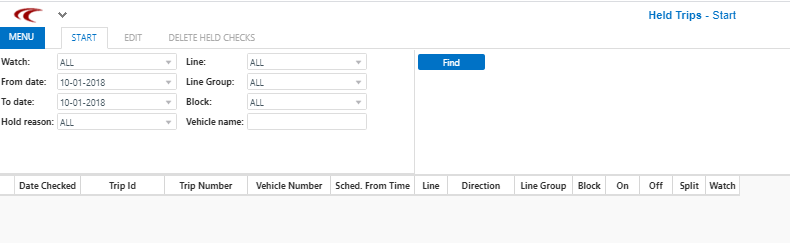
- In the Watch drop-down list, choose the watch type that you want.
-
In the From date and To date
drop-down calendars, select the start and end dates of the period you want to
review.
The drop-down calendars only appear if there is Held data. The menus contain the list of dates that have data.
- In the Line drop-down list, select the line you want to view.
- In the Line Group drop-down list, select the line group you want to view.
- In the Block drop-down list, select the block of the selected line that you want to view.
- Optional: In the Vehicle name field, type the name of the vehicle you want.
- Optional:
In the Hold reason drop-down list, select the reason
that the data may not have been cleared and therefore put on hold.
The Vehicle name and Hold reason fields are filters that you can use to search for a particular vehicle or Hold reason.
-
Click Find.
The data that match your selected filters is shown in the grid.
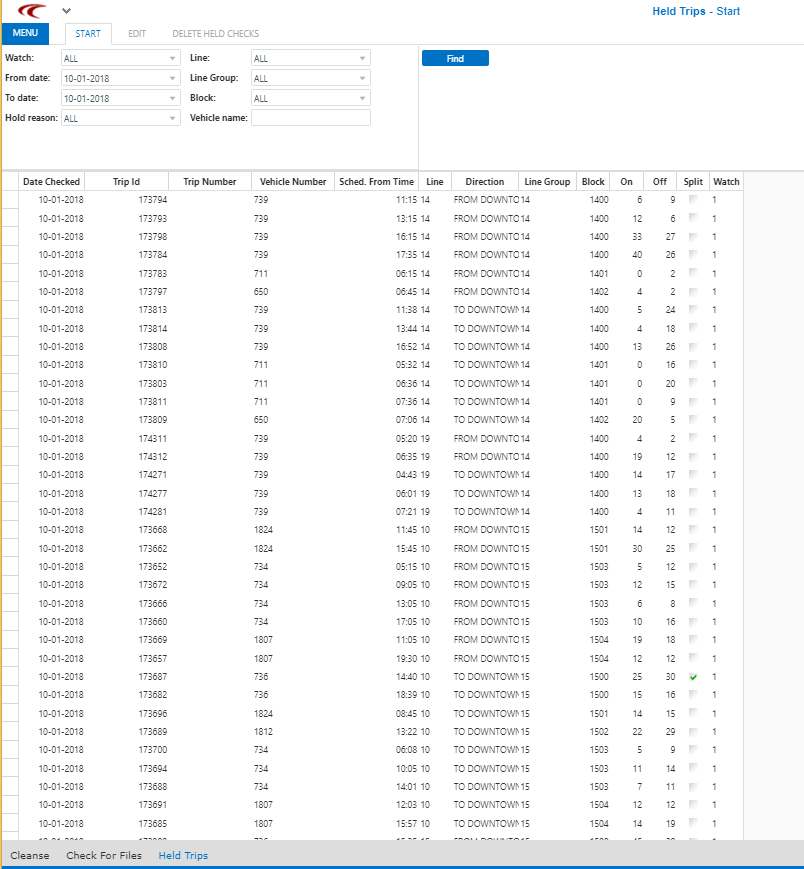 The data contains the following items:
- Date Checked - Date that the APC data was captured
- Trip Id - Trip identifier
- Trip Number - Number of trip
- Vehicle Number - Number of the vehicle
- Sched From Time - Start time of the trip
- Line - Line of the trip
- Direction - Direction of the trip
- Line Group - Line group to which the trip belongs
- Block - Number of block to which the trip belongs
- On - Number of clients who boarded vehicle during the trip
- Off - Number of clients who alighted from vehicle during the trip
- Split - Indicates whether the block was split into two or more parts because of an imbalance
- Watch - Selected watch type