Place text in quotation marks for exact match search results.
Extracting Trips for Hand-Held Checking
You can extract trips for checking in hand-held computers for either ride check or point check data.
Perform one of the following steps:
Click Ridership > Extract Ride Checks by Trip or click the Extract Riding Checks by Trip button:
.
Click Ridership > Extract Point Checks or click the Extract Point Checks button:
Depending on your selection, the Ride Check Trip Extract
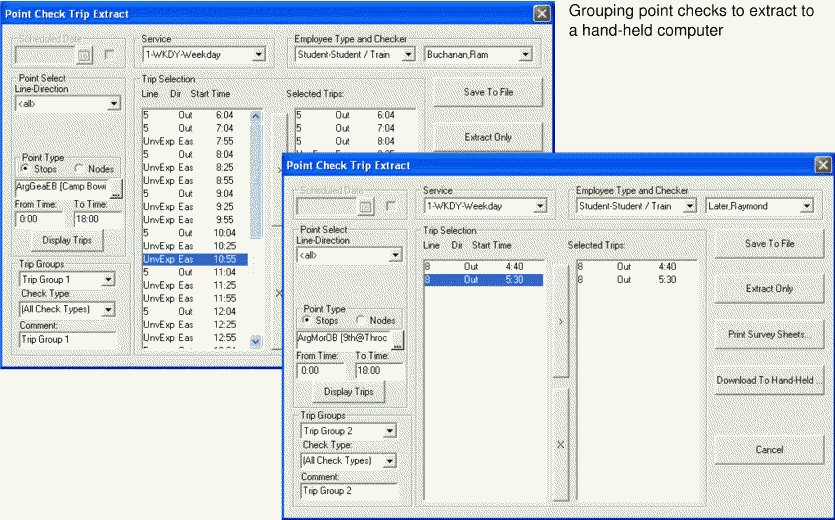
dialog box or Point Check Trip Extract dialog box
appears.
In the left column in the Trip Selection
frame, select the trips that are to be grouped together, and then click the
Add (>) button to move them to the
Selected Trips column.
In the Trip Groups frame, select a trip group, for example,
Trip Group 1.
In the Comment field, enter a comment (up
to 14 characters) for the Trip Group. Typically, the comment is the date when the trip
will be checked.
The comment appears on the hand-held computer. The value set as
the default is whatever is selected in the Trip Group field (for
example, Trip Group 1) so that checkers can readily identify their work. You can also type
your own comment.
Repeat steps 2 to 4
and select all the trips that you want to include in the second trip group.
The trips that you selected for the previous trip group (Trip Group 1) disappear
from view but still exist in the system and are ready for downloading.Repeat the steps until you have created all the required trip groups.
Click Save To File or Download to
Hand-Held.
A message appears asking you whether you want a new extract or to check the
existing extracted trip. It may also include information on the trip group, the name of
the checker, and a flag that a random check has been made on the trip.
Click Done.
All the trip groups that you create are saved or downloaded in a TpRide.dat or TpPoint.dat file. When you download a ride check extraction, the new TpRide.dat file overwrites any existing ones on the hand-held computer. Similarly, all existing trip groups on the TpRide.dat file are replaced with new ones. The old file together with any check data that has been recorded is deleted.

 .
.