About Viewing Check Data
The Ridership Analysis screen contains three tabs: Trips, Stops, and Graph.
Check data can be viewed in different formats on these tabs. By default, when you open the Ridership Analysis screen, trip data for all blocks and patterns of the selected route (line) in the current sign-up period appears in ride check mode, that is, ride checks with the Extract date between the start and end of the selected sign-up period. This feature limits the volume of data that is loaded when users launch the screen especially for those who also use Trapeze PLAN Gateway.
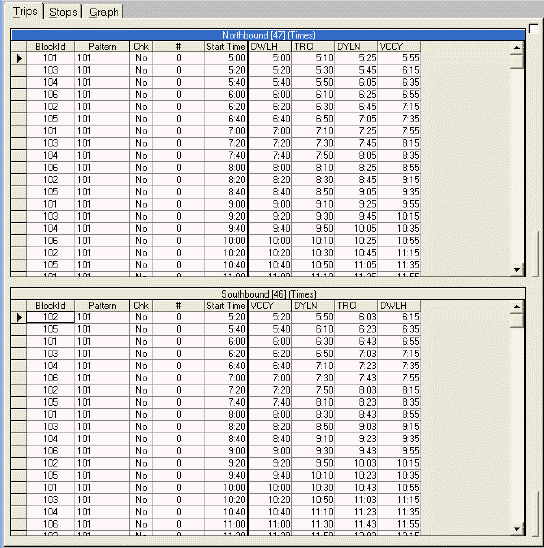
The Trips tab consists of two separate grids. The top grid lists all the trips that are defined by the line that you selected in the Set Mode dialog box traveling in one direction (for example, northbound). The bottom grid shows trips for the same line traveling in the opposite direction (for example, southbound).