
Dispatch New Features
Dispatch enhancements have been added between v21.11 and v21.22.
Daily Activity
- A Show Employee Profile button (
 ) was added to the screen toolbar. Select and employee or work with an associated employee, then select the Show Employee Profile button. The employee's record opens in the Employee Profile screen.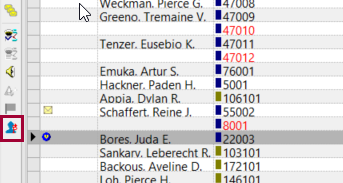
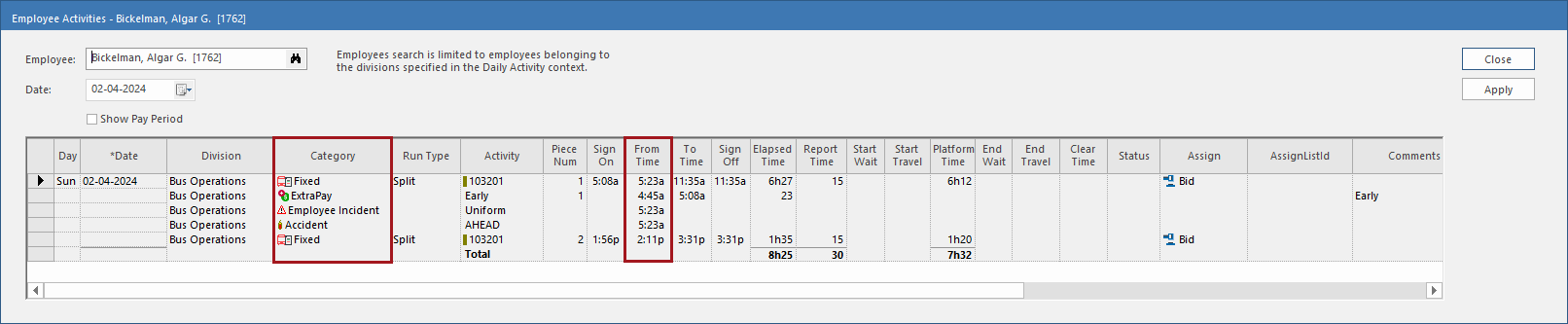
- In the Employee Activities dialog, work is sorted first by
From Time (if it is extra pay for activity-based work, the
From Time of the related work is used). If the From
Time is the same, then it is sorted by Category in
the following order:
- Work
- ExtraPay (shown after the corresponding Work and WorkPieceNum)
- Absence
- Incident
- Accident
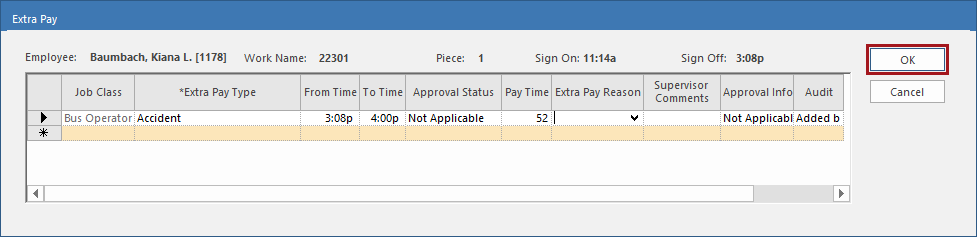
- An OK button was added to the Extra Pay
dialog.
- A Work Assignment Options dialog is now available. This shows open
work and how suitable it is for the selected employee based on absences conflicts, skills
conflicts, and work assignment rules (in that order). If the listed work contains multiple
violations, only the top violation is shown. To see more details, view the View
Work Rule Progression dialog and look at the
Violations tab.
Work is shown individually, unless it has been grouped using the Group Open Work screen. After viewing and determining a work assignment option, assign the work as needed.
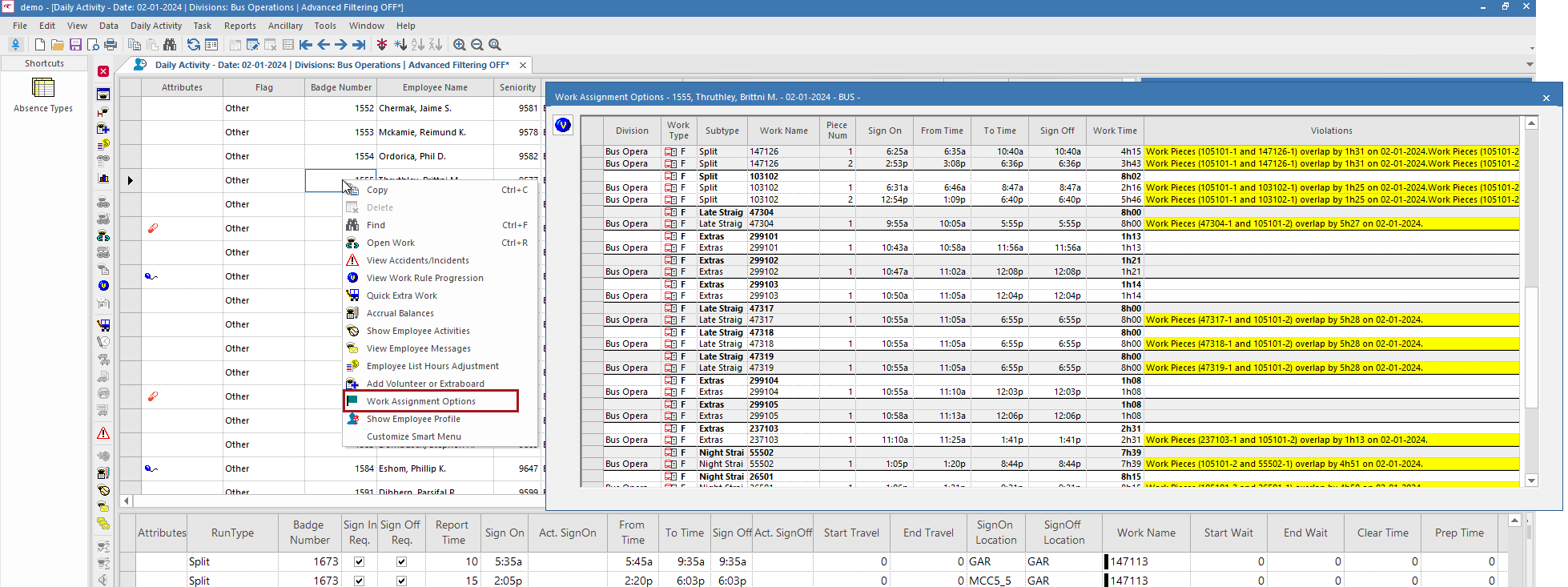
Work Assignment Options is available from the right-click Smart Menu in the Employee and Quick Filter panes. It can also be used in Work Assignment Assistant.