General New Features
General enhancements have been added between v21.11 and v21.22.
- An Update Message Types for Employee Messages (Reference:
OPS-13130) utility was added to the System
Maintenance list in the OPS Upgrade Utilities screen.
 This utility checks to make sure employee message types are listed as expected and updates message types for employee messages when they are missing (or set to 0).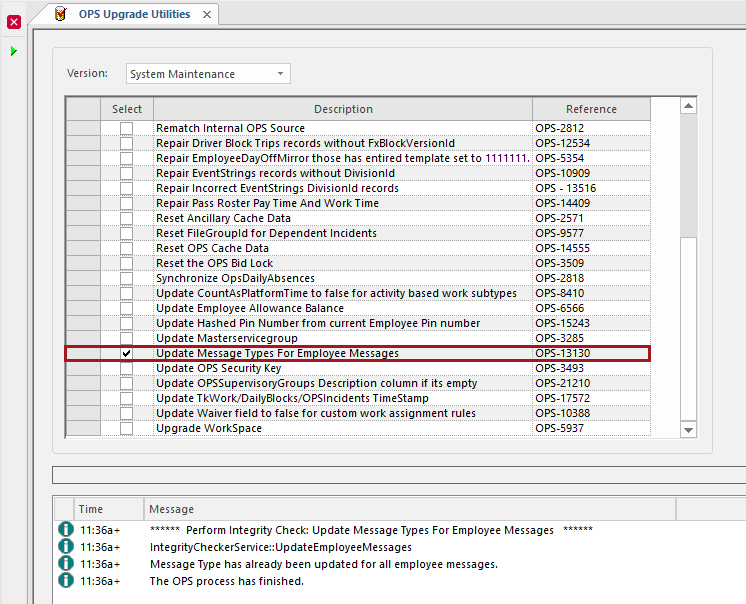
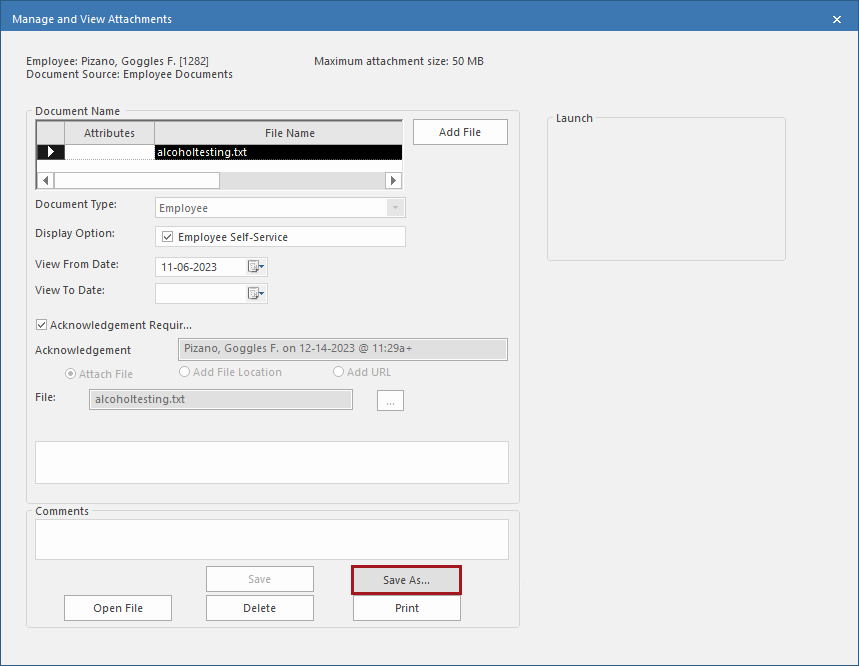
- Documents can be saved locally.To save files to your computer, in the Manage and View Attachments dialog, select a Document Name and then select Save As... Navigate to the save location and update the file name if needed. Select Save. A confirmation message appears. Close the Manage and View Attachments dialog.
- Maximum attachment size for documents is now based on the property.
- Gender options now include pronouns and are configurable. Before configuring gender options, run the OPS Upgrade Utilities, Version 21, Upgrade 21.0 Step 36. Populate Pronouns. Then, if needed, create new gender pronouns in Pronouns ancillary data.
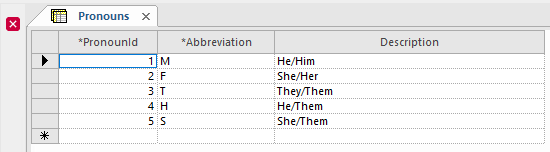 To create new pronoun combinations, open the Pronouns ancillary data screen and enter the following information:
- a PronounId
- a one-character Abbreviation to represent the gender. For example, M for male
- a pronoun Description that is represented by the gender abbreviation. For example, They/Them.
To define the pronoun options for specific employees, in the Employee Profile - Employee Card screen, update the Gender field.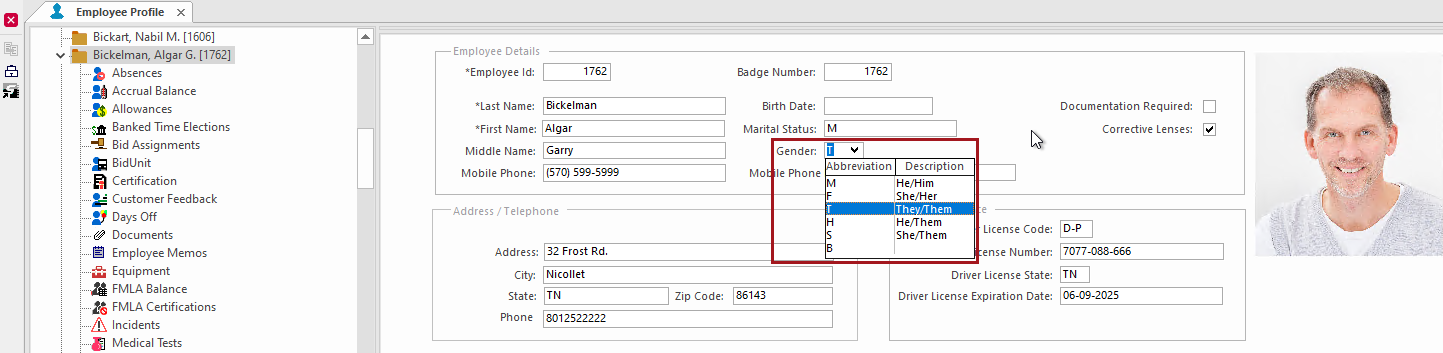 The Gender field is also used in the Incidents Detail screen on the Work and Vehicle Details tab.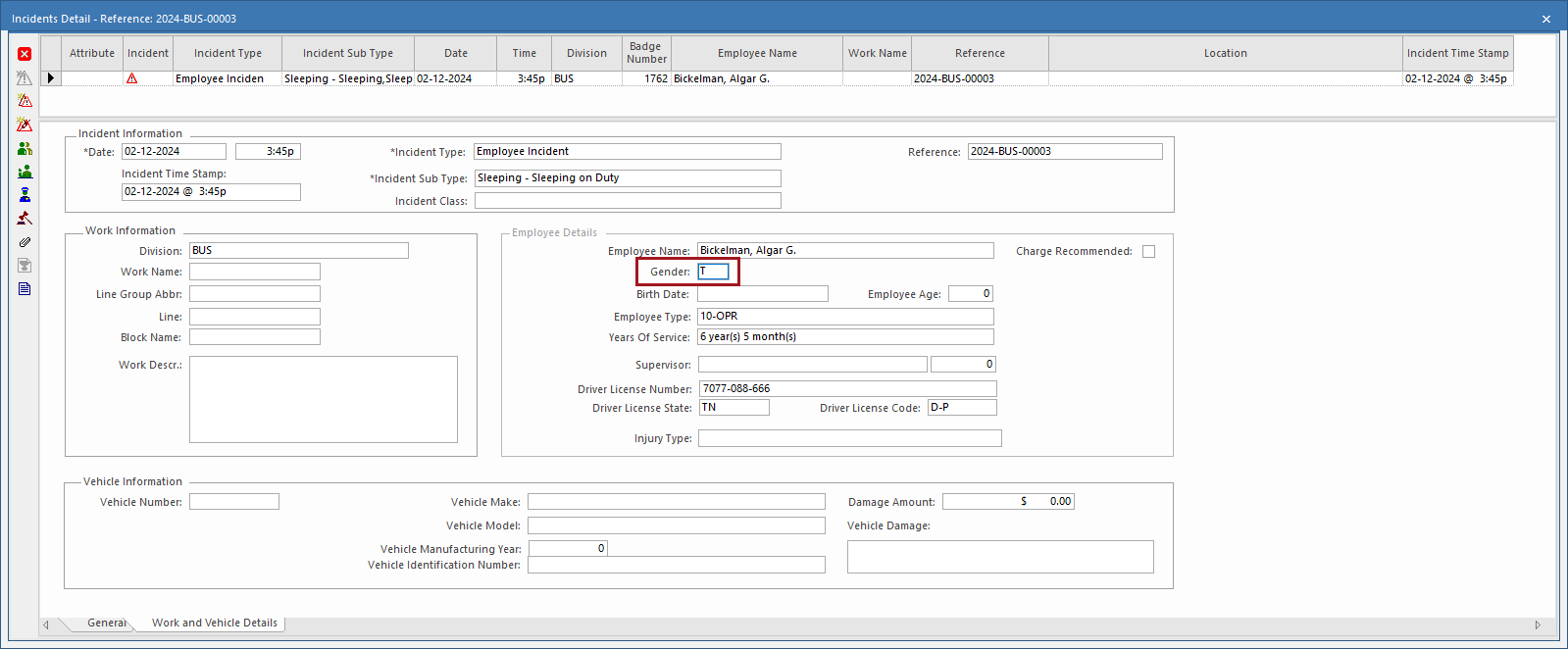
Yard Management
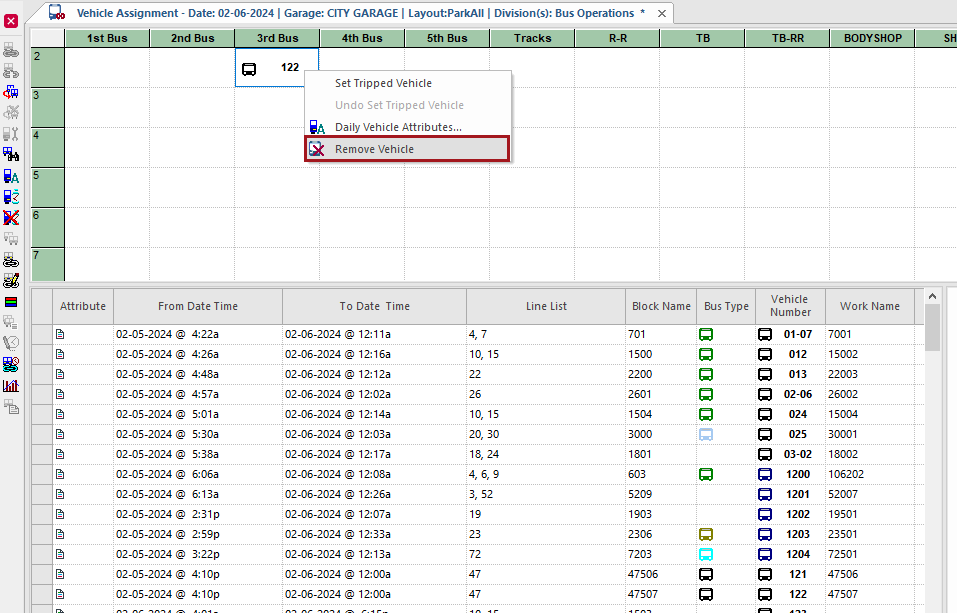
- When selecting vehicles in the Vehicle Assignment screen, the
right-click menu now includes Remove Vehicle. A confirmation
message appears when removing multiple vehicles from the parking grid.
Standard Reports
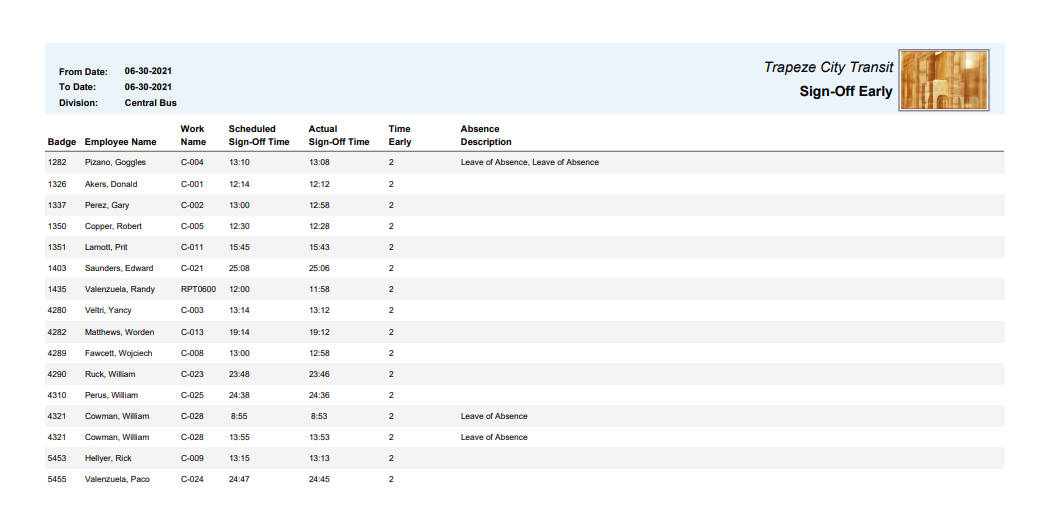
- A new report was created: Sign-Off Early
This report shows information for operators whose actual sign-off time was earlier than scheduled. It also shows any absences entered after the actual early sign-off time on the same day.
If the property is defined, PASS work is included in the report.
Report parameters are From Date, To Date, and a choice of one Division.
Columns visible in the report are Badge, Employee Name, Work Name, Scheduled Sign-Off Time, Actual Sign-Off Time, Time Early, and Absence Description. Time Early shows how many minutes before the Scheduled Sign-Off Time the employee actually signed off.