
Creating SQL Reports
You can create and run SQL queries, and create custom reports for your transit site. Reports that you create should be saved in a different folder than reports developed by Trapeze.
Important: Trapeze only supports reports that are developed by
Trapeze staff.
-
Select or select the New button
 .
.
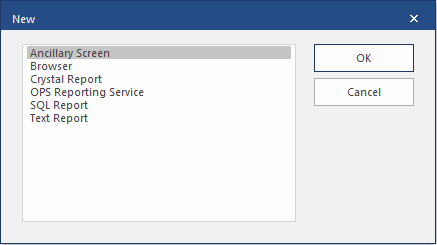
-
Select SQL Report and then
OK.
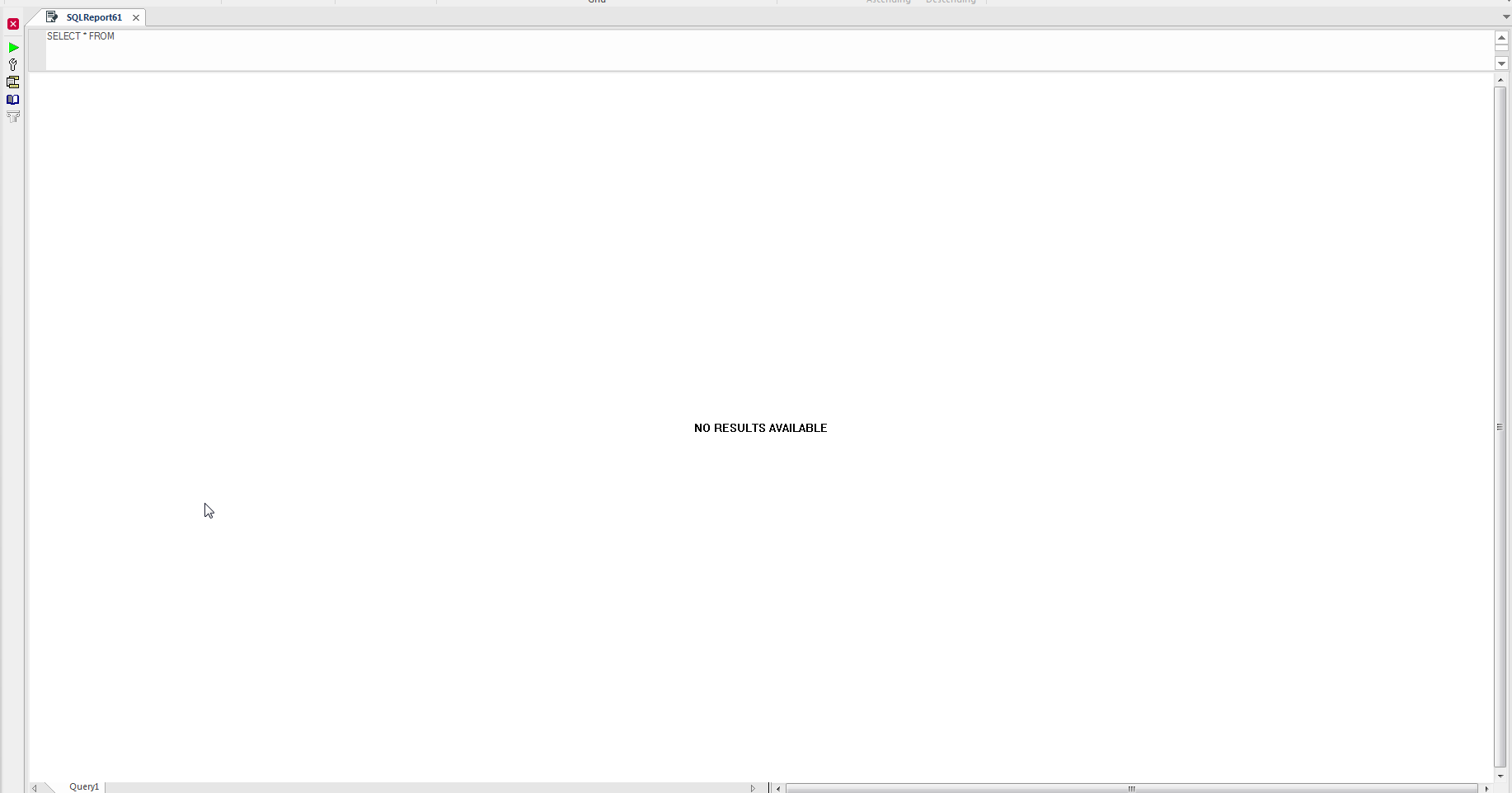
The SQL Report screen appears. The top pane is a query box for entering a report query. Results appear in the lower pane after you run the query.
- Optional: Set the report's options.
- Optional: Add queries to the report.
-
Select Save:
 Navigate to the folder where you want the file saved and select Save.The file is saved with the .trf6 extension.