
Setting SQL Report Options
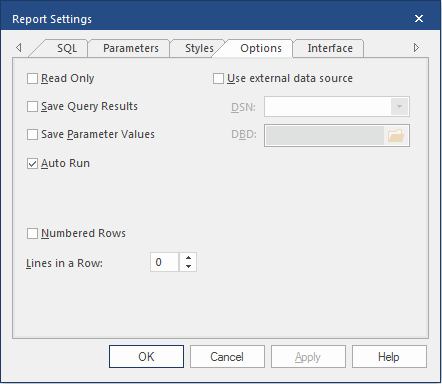
You can set run and display options for SQL reports.
- Users can modify the report
- Query results are saved after the report runs
- Parameter values are saved
- Report queries run automatically when the report is opened
- Query result rows are numbered sequentially
- A different ODBC datasource is used
-
In an SQL report, do one of the following:
- Select
- Select Settings:

- On the keyboard, press Ctrl and R.
The Report Settings dialog appears. -
Select the Options tab.
-
Select the options as required:
Option Description Read Only Set the report as read only. Save Query Results Save the results with the report. Save Parameter Values Save the parameter values with the report. Auto Run Run the report automatically when it is opened. Numbered Rows Number the data rows. Lines in a Row Enter the number of text lines you want to display in a row. Use external data source Select and define a DSN and DBD if a different ODBC datasource should be used. - Select OK.