
Adding Transportation Modes
The Transportation Modes screen allows you to identify the vehicles at your site.
-
Click .
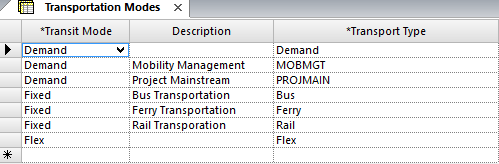
-
Click the Add New button:

-
In the Transit Mode field of the new row, choose one of the
following options:
-
Fixed - The vehicle is used for fixed route services.
-
Demand - The vehicle is used for demand response services.
- Flex - The vehicle is used for flex route services.
-
- In the Transport Type field, define the type of transport, for example, bus, ferry, or big boat.
- In the Description field, type a description of the transportation mode.
- Optional: To mark the transportation as inactive, select the Inactive check box. Only active ones are shown in the Transport Type drop-down list in the COM Representative and COM Investigator screens.
-
Click the Save button:
