Place text in quotation marks for exact match search results.
Generating IVR Standard Reports
The IVR standard reports are generated in the Trapeze6 Client Shell.
The report contents depend on the parameters that you set in the Enter
Parameters dialog box. If no information appears in the generated reports, this
may mean that you have no or incomplete data.
The following procedure applies to each of the
standard reports:
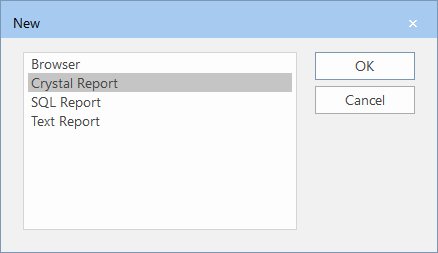
On the Client Shell, click File > New.
The New dialog box appears.
Click Crystal Report, and then click OK.
A new tab appears on the screen with a prompt to set up the report.
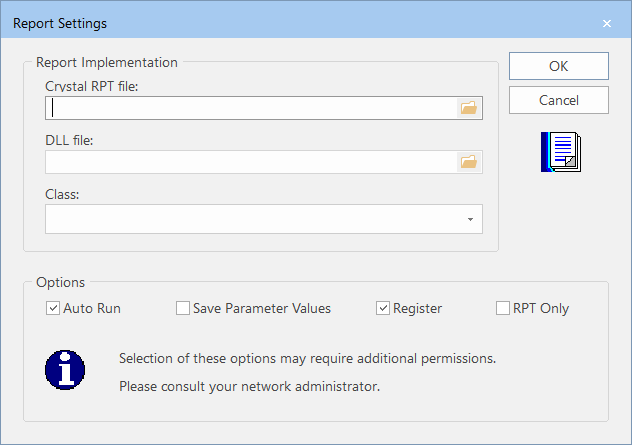
Press CTRL + R.
The Report Settings dialog box appears.
In the Crystal RPT field, browse for the appropriate report file
in the Modules > Extra > Reports folder.
In the DLL file field, type the name of the dll file you
require: IVRStandardReports.dll.
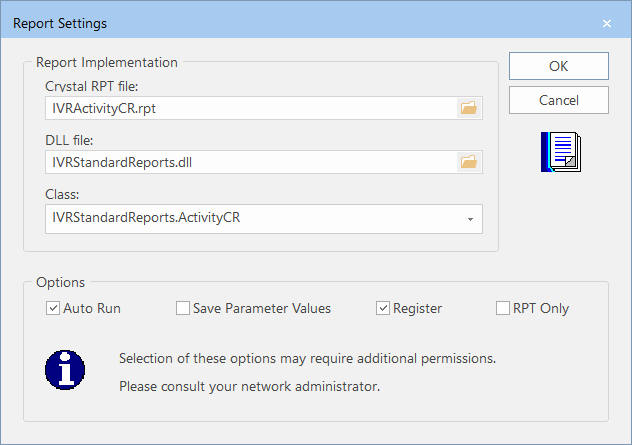
In the Class drop-down list, click the file that matches the
selected report. The following graphic shows the IVR Activity report selected as an
example:
Click OK.
A new prompt appears advising you to click the green arrow button.
Double-click the green arrow on the vertical toolbar.
The Parameters dialog box for the selected report
appears.
Set the parameters to enable the system to determine the data to be included in the
report. Use any of the following methods, as appropriate:
Select a date from the calendar.
Enter the required value in the field.
Select an option from the drop-down lists provided.