
Forwarding Actions
The complete resolution of one issue may require several actions or may need to be forwarded to other parties in the organization for further action.
-
On the screen toolbar, click the Forward Action button:
 .
Depending on the settings defined for your transit site, the action may be automatically selected as inactive or the following message appears.
.
Depending on the settings defined for your transit site, the action may be automatically selected as inactive or the following message appears.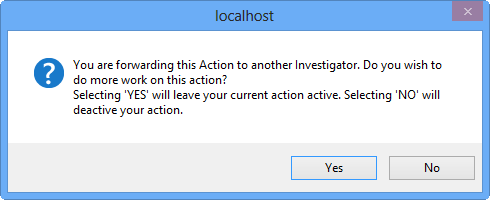
- Optional:
Do one of the following steps:
- Click Yes if you want the current action to remain Active.
- Click No if no further work is to be performed.
In this case, when you forward the action, the Active check box is cleared.
The Departments & Divisions dialog box appears.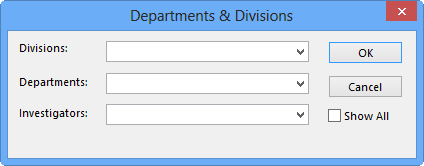
A new action record appears in the Actions pane. The selected division, department, and investigator are entered in the appropriate fields of the Investigator and Actions tabs. The feedback is forwarded to the selected investigator.
If the Send email when forwarding action context property is activated, an email message is automatically sent to the selected investigator.
The Incident date for the solution is highlighted in red. Red text indicates information in the new solution that does not match the information entered in the original feedback.