Place text in quotation marks for exact match search results.
Searching for Specific PASS Bookings
Feedback provided by customers often contains limited data. For example, you might have
the line, direction, date, time, and vehicle but you need to know the employee involved or the
block number.
COM offers several ways to access data available in databases used by other Trapeze
applications.
You can search for information about a specific PASS booking, for example,
add to a new feedback record.
Press F3 to open the Find Feedback dialog
box.
In the Pass Client field, do one of the following steps:
Type the client name.
Click the field and click Find. Select the appropriate name
from the list. See a description of this field in PASS Query Fields.
In the Incident Date field, enter the date on which the incident
occurred.
Place your pointer in the Booking Id field and press
CTRL + ENTER.
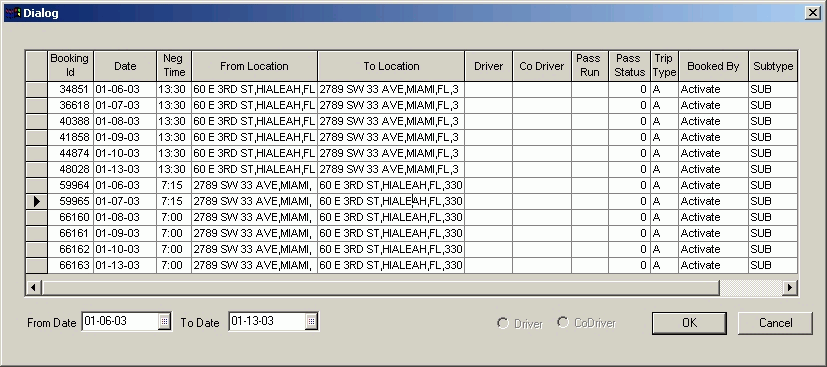
A dialog box displays all bookings that occurred on the specified date.
If there are no bookings for the date, do the following steps:
In the From Date and To Date fields,
enter dates within which the incident occurred.
Click Calendar to choose a date from the calendar.
The system generates bookings for the selected client within the date
range.
Click the appropriate booking.
To view the employee details, select either the Driver or
CoDriver option.
This specifies the employee name that appears in the Employee
Involved field. The buttons are activated only if appropriate data
associated with the driver or co-driver is available.
Click OK.
All PASS related fields in the screen are filled in with the information in the
booking.