Place text in quotation marks for exact match search results.
Updating Workspace Layouts
You can update your workspace layout with a source workspace. This can be an exported
workspace or one stored in your database.
Click Tools > Workspace Layout Manager.
In the Source frame, choose an exported or local workspace from which to update:
In the Trapeze Workspace Files (*.twsp) drop-down list,
click Open.
In the Open dialog box, navigate to the exported Trapeze
workspace file (twsp) and click Open.
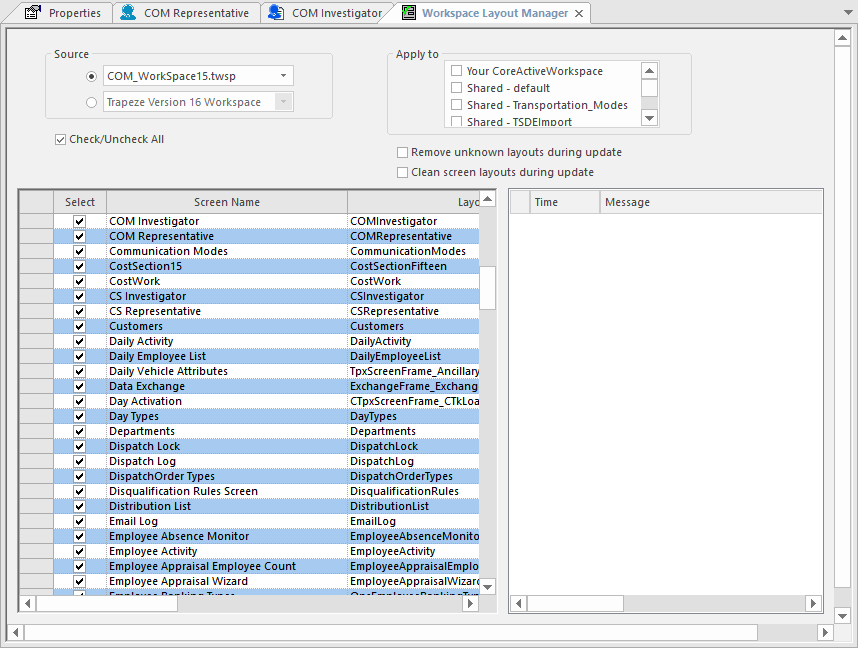
In the list of workspaces, select a local workspace. The following graphic shows
the selected sample workspace:
When you select a workspace, its screen names and layout names are shown in the left
grid.
The value, (unknown) in the Screen Name column means
there is no known usage of the layout in the upgrade version.
In the Apply to frame, select the workspaces which you would like to update.
Do one of the following steps:
In the Select column, select the check boxes of the layouts
you want updated in the workspaces and clear the check boxes of the layouts you do not
want updated.
To select or clear all the check boxes, select the Check/Uncheck
All check box.
Perform any of the following steps as required:
To exclude unknown layouts from the update process, select the Remove
unknown layouts during update check box.
To apply a layout without bold and zoom effects and custom colors, select the
Clean screen layouts during update check box.
On the vertical toolbar, click the Perform Workspace Layout
Upgrade button: .
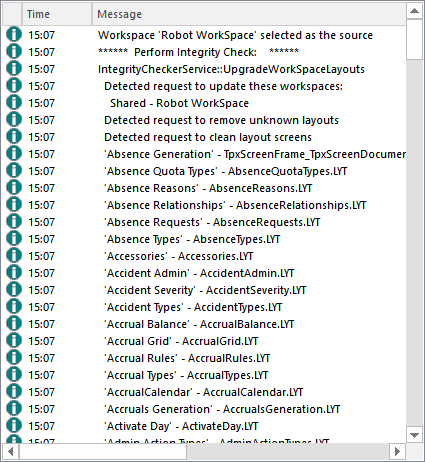
After the process is completed, the list of updated layout files is shown on the right
grid. The following graphic shows some sample results:When you close the screen, you are prompted to save the changes.

 .
.