Place text in quotation marks for exact match search results.
Using the Design Mode in Detail View
While in Design mode, you can customize the sections that are in Detail format in the
COM Representative and COM Investigator
screens so that the position and size of fields and field labels are more suited to your
needs.
Right-click anywhere on the screen that you want to modify, and then select
Design Mode from the shortcut menu.
A check mark appears beside the Design Mode
option to indicate that you are in Design Mode.
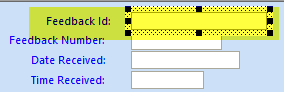
Select the field or field label you want to modify.
A dotted rectangle surrounds the selected item.
To select more than one item at a time, press
CTRL and click the items you
want.
To move the selected fields, drag them to the appropriate position on the
screen. If you select more than one field, they are moved as a group.
Right-click and select the option you want to apply:
Align, Size, Space
Evenly, and Label.
When you are finished, right-click anywhere on the screen and click
Design Mode again from the shortcut menu.
Note: To clear selections, click an empty area of the screen. The dotted
rectangle disappears from the selected fields.