
Searching for Feedback in the COM Representative Screen
You can search for feedback with the Find Feedback feature in the COM Representative screen. (This procedure is also know as setting the context in the COM Representative screen.)
-
In the COM Representative screen, do one of the following steps:
- Press F3.
- Click Context.
The Find Feedback dialog opens.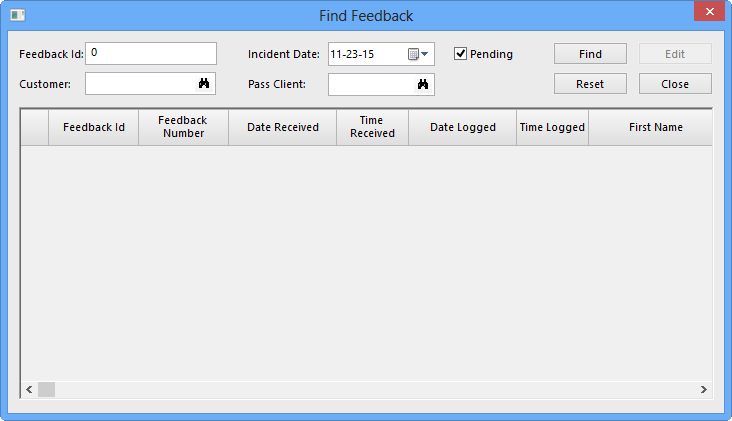
-
Select your search criteria. The options are:
- Feedback Id: If you are looking for a particular feedback record or set of feedback records (feedback with more than one associated subject), enter a feedback identification number.
- Customer: Type the customer’s name.
- Incident Date: Choose the date of the incident by clicking the calendar icon.
- Pass Client: Enter the name of the PASS client.
- Pending: Select this check box to view feedback which has pending responses.
If you do not to type any search criteria, all records are displayed. -
Click Find.
The results are displayed in the grid.
- To clear the search criteria and start a new search, click Reset.
- Click Close.