
Adding Permissions For Users and User Groups
You can add groups of permission keys to users or user groups.
- Do one of the following:
- Click Tools > Security.
Depending on your system setup, Security may be found in a different location.
- Click the Security shortcut:

The Security screen appears. - Click Tools > Security.
- Do one of the following:
- Navigate to Security > Users.
- Navigate to Security > User Groups.
- Click the user or user group to which you want to add permissions.
- In the right pane, click the Permissions folder.
-
Click Security > Add Permissions.
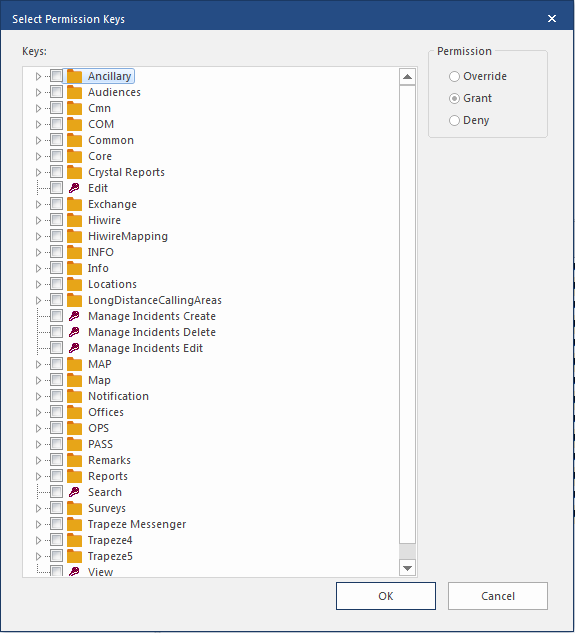
The Select Permission Keys dialog box shows a list of permissions not yet assigned to the user or user group.
-
Select the permission keys you want to add.
All the permission keys will be added with the same permission level. If you need to add keys with different permissions, you will have to repeat the process for each permission level.
- Click the permission level (Deny, Grant, or Override) to assign to the selected keys.
- Click OK.