
Sending Form Letters
The procedure for printing or sending form letters to clients is similar to sending email messages to clients regarding their feedback.
-
On the screen toolbar, click the Form Letter button:
 The Correspondence dialog box appears.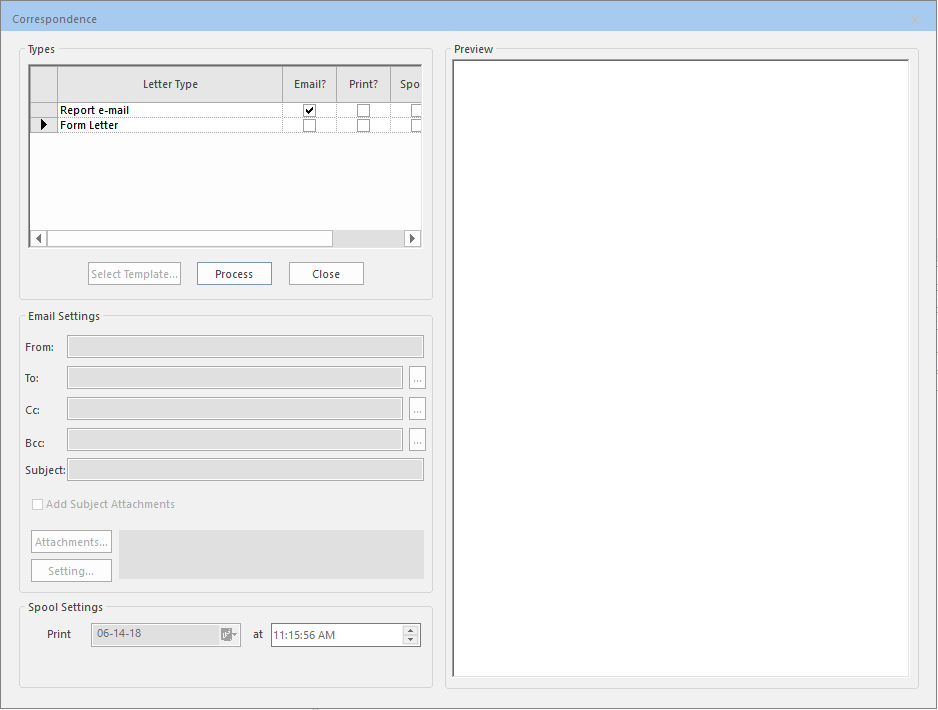
-
In the Form Letter row in the Types
frame, select any of the following options:
-
Email?: If selected, the form letter is sent as an email message to a client. Perform the procedure described in Sending Form Letters by Email.
- Print?: If selected, the form letter is printed and sent by surface mail.
-
Spool?: If selected, the form letter is spooled for batch printing. The Spool Settings frame at the bottom of the dialog box is activated.
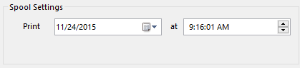
To override the day or time set as the default for batch printing, type the date and time when you want to print the letter in the Print and at fields.
Alternatively, click the calendar icon and control buttons to select the date and time.
-
Add to Subject?: If selected, the form letter is attached to the COM subject as a standard attachment.
-