Drive Screens
Drive Screens is a safety feature of DriverMate designed to minimize driver interaction with the device while the vehicle is moving.
The goal is to provide the driver with enough information to complete their work while limiting distractions. Driver Screens are automatically displayed when the vehicle starts moving and are turned off a few seconds after the vehicle comes to a stop.
Configuration
The following table describes the settings that determine what is displayed on the Drive screen:
| ID | Name | Description | Default |
|---|---|---|---|
| 1470 | Drive Screens Logged In |
A comma separated string indicating which Drive screens should be displayed while the driver is logged into DriverMate. Possible values are:
The screens are displayed in the order that they appear in the list. The setting values are not case sensitive. Example: If "1470": "clock, event" is selected, when the vehicle is moving, the Clock Drive Screen appears first. If the user taps anywhere on the screen, then the Event Drive Screen is displayed. |
Clock |
| 1460 | Drive Screens Debounce |
The number of seconds that the Drive screen remains displayed after the motion sensor transitions to not moving. |
15 seconds Range: 0 to 60 seconds |
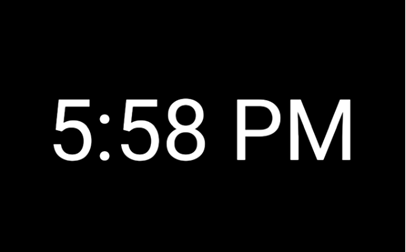
The following image shows an example of the Drive screen with the Clock (time) displayed:
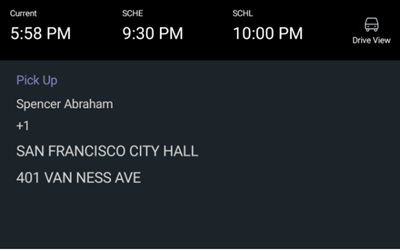
The following image shows an example of the Drive screen with the Event details after the user taps the screen: