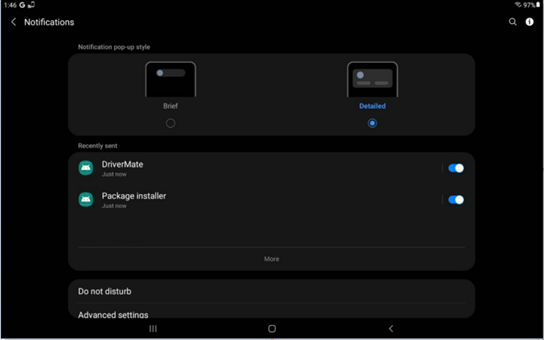
Local Notifications
Local notifications allow an application to ask the Android OS to send a notification to the user and perform specific actions when tapped.
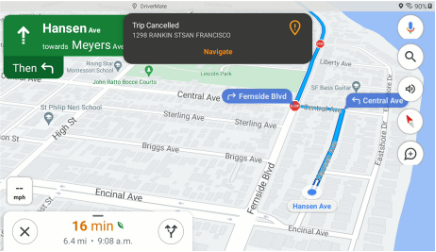
The focus of local notifications is to provide critical information to the driver when running in the background, for example, when using Google Maps for navigation. Specifically, a notification is displayed if the destination the driver is navigating to has changed.
DriverMate only allows the user to navigate to the first event in the list. If that event is removed, or an event has been inserted, the driver is notified. Tapping anywhere on the notification sends instructions to Google Maps to navigate to the new location. If the driver needs more information at this point, then they must pull over and review the manifest when it is safe to do so.
- Notification appears.
- Device chimes and potentially vibrates.
- TTS triggers an announcement, "Trip cancelled. Press the navigate button to go to new destination."
- TTS triggers an announcement, "Navigating to the new location"
- DriverMate sends the new navigation coordinates to Google Maps.
- Google Maps updates the destination and navigation instructions.
Notifications do not stack. When a notification is active and the current event changes, a new notification replaces the existing notification.
The sound and vibration that happen when a notification is displayed is not repeated, but will happen every time a new notification is created even if there is a notification already active.
Configuration
Local notifications are not enabled by default. Each transit agency can decide if they want the driver interacting with the local notification while the vehicle is moving.
| ID | Name | Description | Default |
|---|---|---|---|
| 3000 | Local Notification Enable | Enabled - true Not enabled - false |
false |
Android Configuration