
Setting CTM Engine Properties
Specific Trapeze6 properties (also called context properties) are used with CTM Engine.
Before you begin
Procedure
-
Navigate to .
Refer to the following image for default CTM Engine property settings.
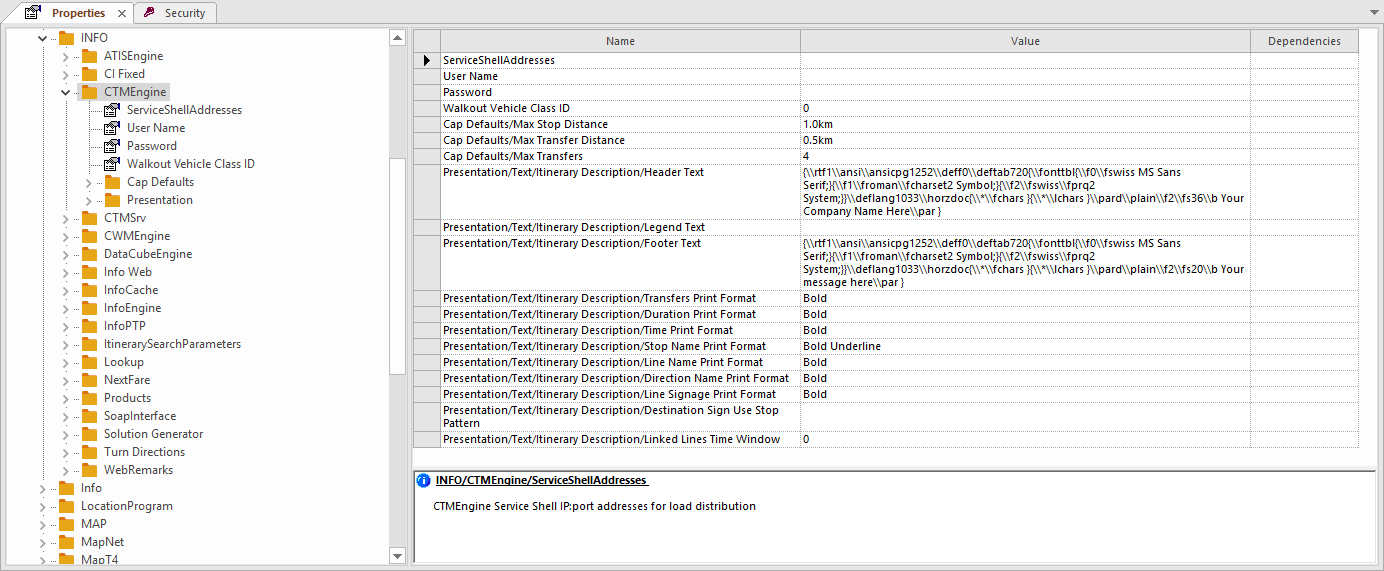 Most CTM Engine properties are set by clicking an option in the list.
 -
Set the Walkout Vehicle Class ID property.
This is the default vehicle class ID to use when generating pedestrian walkout instructions.You do not need to restart after setting or editing property values.
- Set the Cap Defaults properties.
- Optional:
Set the Presentation,
ServiceShellAddresses, User Name, and
Password properties.
If using separate PASS and INFO databases, set the User Name and Password properties to define the credentials used to connect to the Oracle or Microsoft SQL database server.Using separate PASS and INFO databases requires using separate Service Shell instances.
- Set any additional CTM Engine properties.
-
Click the Save button:
