
Installing PASS-IPA for INFO-Agent
When Trapeze INFO-Agent software is used for trip planning, the following steps should be taken to set up PASS-IPA.
Before you begin
Procedure
-
In the Trapeze4 Workstation, click . On the Profile tab, click .
If PASS-Web or PASS-IVR are used to book trips, set this property to Yes. Otherwise, set the property to No.This document assumes that Trapeze4 is being used (that the property is set to No).
If Trapeze6 is used, then many of the property settings described in Trapeze4 must be set in Trapeze6 because that is where the booking validation service gets its context properties.
-
Update user-defined properties:
-
Configure CTM Server:
- In the TP4 folder, launch CtmSrv41.exe.
- Click .
- Confirm that the Server Name, correct database (Data Source), and correct sign up period (in the Cache frame) are selected.
- Select Load Cache.
- In the Trapeze4 Workstation, click and, on the Profile tab, click .
-
Configure Trapeze6 properties (also known as context properties):
-
Edit the TpNet.ini file to include CTM Server information.
For example: CTMSRV.PASS_16 TRP-J05688 localhost 11020 tcp
- Enable the Solution Generator.
To be able to set up PASS-IPA properly, it is important to understand the relationship of solution sets, solutions, and parameter sets. A solution set can have several individual solutions (for example, for walking, driving, transit), although PASS-IPA will only have one solution (transit). In turn, each solution is associated with a parameter set.
-
Define the parameter sets:
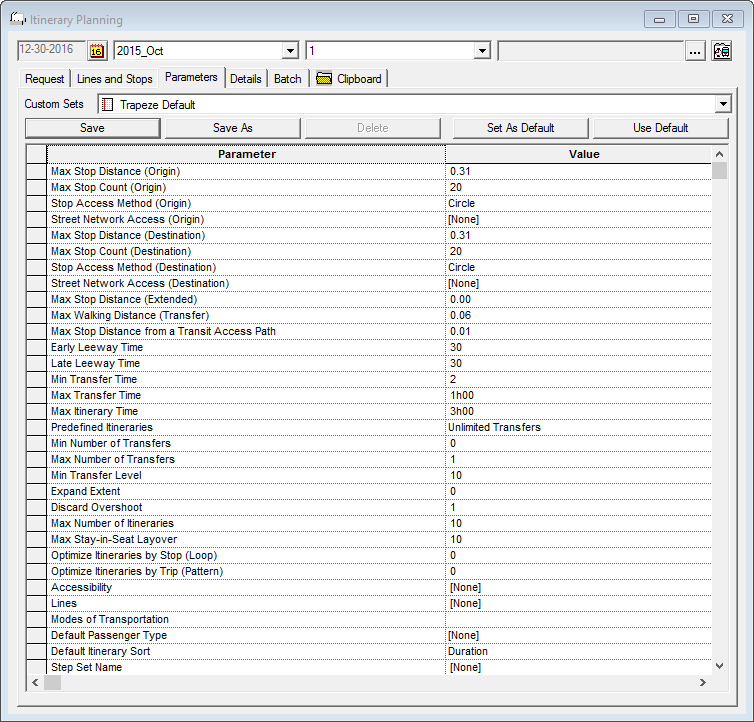
Create a default parameter set for requested pick-up times and another one for requested drop-off times. If your site does not use requested drop-off times, you only need to create one default parameter set.
-
Click a parameter set in the Custom Sets list or
use the current one.
A list of parameters and their values appears.
-
Click a parameter set in the Custom Sets list or
use the current one.
-
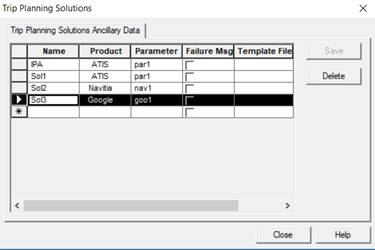
Set up solutions ancillary data:
-
Click .
-
Click .
-
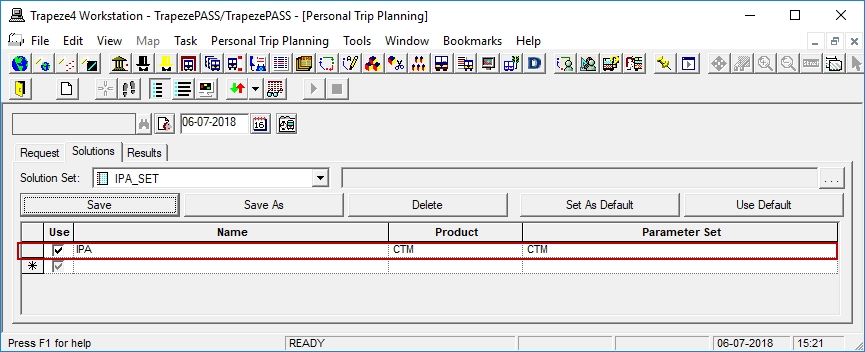
Associate the created solution for Trapeze personal trip planning:
- Click .
- Click the Solutions tab.
-
Modify the visible data using the Name column by
selecting the Solution Name created in Trip Planning Solutions ancillary
data.
-
Click Save As.
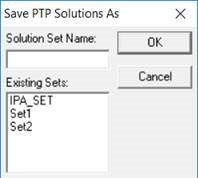
- Type a Solution Set Name for the modified version.
- Click OK.
-
In the Trapeze4 Workstation, define the solution sets in IPA system
properties:
- Click .
- On the Profile tab, click .
- Define the solution set to be used for drop-offs.
- Click .
- Define the solution set to be used for pick-ups.
-
In the Trapeze6 Client Shell, define the default solution set:
-
Click the Save button:

-
Click the Save button: