
Inserting Services
Move services from one group to another to reassign them.
Procedure
- On the Service Groups tab, highlight the group to which you want to move the service.
- Click Insert Services. The Select Services dialog box opens. It shows a list of services that are available.
-
Click the service that you want to add.
To move multiple services to this group, press CTRL.
-
Click OK.
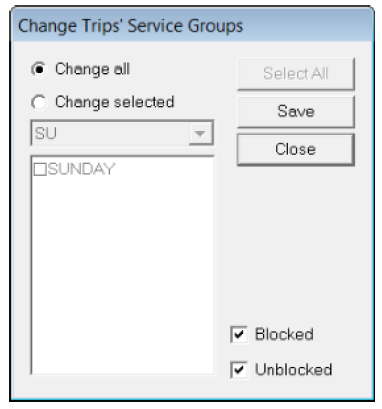
If there are trips associated with the service:The Change Trips' Service Groups dialog box opens:
-
Do one of the following steps:
-
To move all the trips within the services you selected to the service group, click the Change all option. This
is the default.
-
To choose (from the list) the trips to move, click the Change selected option. Use the Select All command to
select all trips once the Change selected option is clicked.
-
- To apply the changes to either the blocked or unblocked trips or both types, leave the Blocked and Unblocked check boxes selected or clear them accordingly.
- Click Save.
-
Click Close.
Note: Moving a service could affect other parts of the schedule that relies on services or service groups such as Blocking.