
Viewing Non-Activated Subscription Records
Subscriptions that have not yet been activated can be viewed in Trip Administration.
Before you begin
About this task
Procedure
- Select the Sub (Subscription) check box.
- Select the Schedule check box and click the ellipsis button (…).
- Select a schedule Type and Schedule.
- Click OK.
-
Select Non Activated from the Sub connected drop-down list.
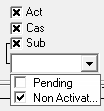
Non-activated subscriptions are subscriptions that have not been activated for the defined schedule day. - Type the Client name.
- Click Display.