
Para Service Area Rules
Certain service types permit travel only on specific days of the week, times of the day, and/or within specific areas.
Before you begin
About this task
For more information about exempting a client from the paraservice area check, see the PASS System Administrator and User Guide.
If you use paraservice area rules, you must consider all permissible travel between polygons for the service type. The system does not allow any bookings outside of those times and areas defined for the selected service type.
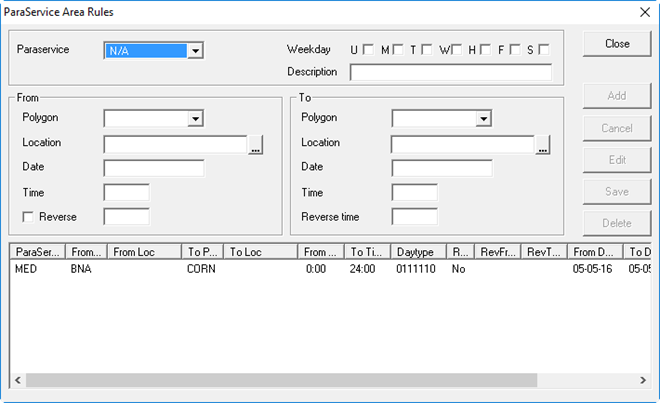
Before defining rules, create all the polygons and common locations you need. The polygons available in this dialog box are determined by the polygon type you selected with the Para Service Area Polygon Type system property.
See the PASS System Administrator and User Guide for more information.
Procedure
- Click .
-
Provide the following information as needed:
- Paraservice
- Click a service type.
- Weekday
- Select the days of the week for which the rule is in effect.
- From
- In the frame, define the rule's origin information:
- Polygon
- Click the origin polygon.
- Location
- To restrict travel to start from a specific location, search for or type the name of the location. If there are multiple matches, click a location in the list.
- Date
- Type the start date from when the rule is to take effect. If no date is entered, the rule is activated when you save the record.
- Time
- Type the start time from when travel is permitted (for example, starting from 8:00). The system will not schedule any pick-ups before this time.
- To
- In the frame, define the rule's destination information:
- Polygon
- Click the destination polygon.
- Location
- To restrict travel to end at a specific location, search for or type the name of the location. If there are multiple matches, click a location in the list.
- Date
- Type the start date from when the rule is to take effect. If no date is entered, the rule is activated when you save the record.
- Time
- Type the end time to when travel is permitted (for example, ending at 19:00). The system will not schedule any pick-ups or drop-offs after this time.
- Reverse
-
(Optional) If permitting travel to and from the specified locations/polygons between the To Time and From Time, select the Reverse check box. For example, travel is permitted from A to B from 8:00-14:00. These times will also appear in the Reverse time fields; thus, travel is also permitted from B to A from 8:00–14:00. You can overwrite the reverse times if needed. For example, to permit only travel from A to B at 8:00–14:00 and return travel from B to A at 15:00–18:00, enter 15:00 and 18:00 in the Reverse time fields.
-
Click Add.
The rule is added to the list.
- Click Close.