
Setting Paratransit Attributes for FX Runs
You can set paratransit attributes for FX runs used in multi-modal scheduling.
Before you begin
About this task
In the Trapeze4 Workstation, in , if the property is set to Yes, you can specify paratransit attributes for lines using the Para Master Line screen in the Trapeze4 Workstation. The available paratransit attributes are determined by the ancillary data previously defined by your system administrator. The specified paratransit attributes are then assigned to lines for which a Para Master Line record has been created.
For more information about ancillary data in PASS, see the PASS System Administrator and User Guide. If the property in the Trapeze4 Workstation is set to No, FX routes are activated for all lines. In this case, paratransit attributes assigned to FX runs are determined by Schedule Server switches.
Procedure
-
Click .
Sched Para Master Line appears.
-
Click the Add New button:

The Detail tab shows empty fields for entering data.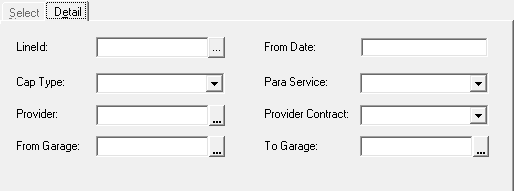
-
Click the ellipsis button beside the LineId field.
The Select Lines dialog box appears.
- In the Signup list, click the signup period.
- In the Lines area, click the line for which you want to specify paratransit attributes.
- Click OK.
- In the From Date field, specify the first date for assigning the paratransit attributes.
-
Specify the paratransit attributes to assign to the FX runs using the following fields:
- Cap Type
- (Capacity type) Click a capacity type in the list.
Capacity types defined in that have been added to the Capacities Type table on the Capacities tab in are listed.
- Para Service
-
Click a paraservice type in the list.
Paraservice types are defined in .
- Provider
- Begin typing the provider name to select the provider from a list.
Providers are defined in .
- Provider Contract
-
Click a provider contract in the list.
Provider contracts are defined in .
- From Garage
-
Begin typing a garage name to select the from garage from a list.
Garages are defined in .
- To Garage
- Begin typing a garage name to select the to garage from a list.
Garages are defined in .
-
Click the Save button:
