
Updating the Data Source Using DBEdit
Comparing and updating your data source so that it matches the database definition allows it to function correctly with Trapeze software.
About this task
Never remove tables or fields from *.dbd or *.db-schema files.
Procedure
-
Navigate to and double-click DBEdit.exe.
DBEdit is typically found in the Toolkit.Use the DBEdit version (32-bit or 64-bit) that works with your data source connection type. For example, ODBC Data Sources (32-bit) or ODBC Data Sources (64-bit). If you are updating the data source to match the *.db-schema or *.dbd files and are using both 32-bit and 64-bit connections, you only need to update the data source once.Depending on your system setup, you may need to run the .exe file as Administrator.DBEdit appears.
-
Click .
The Open dialog box appears.
-
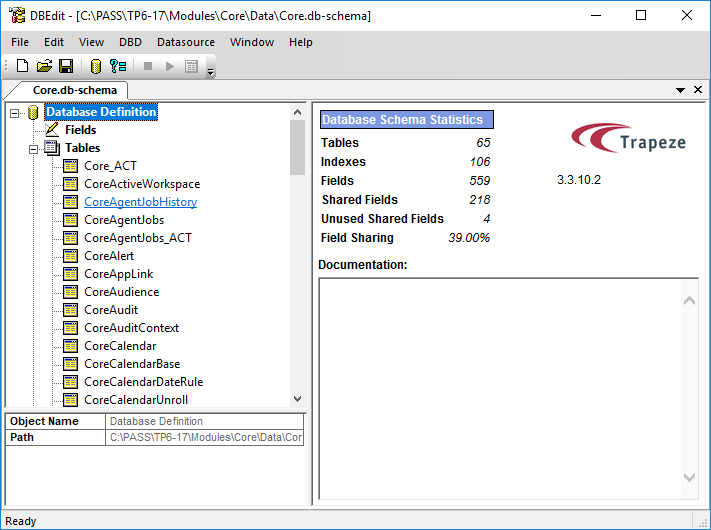
Navigate to and open Core.db-schema.
Typically, the file is found in path\Modules\Core\Data folder, where path is the folder where PASS Real Time Views is installed.Schema information appears in the DBEdit window.
-
Do one of the following:
- Click .
- Click the Connect button:

The Select an ODBC Data Source dialog box appears. -
Click the data source used by PASS and click OK.
If a message box appears, click OK.
-
Do one of the following:
- Click .
- Click the Compare button:

The Compare Differences with Dbd dialog box appears. -
If the compare does not automatically start, in the Compare Differences with
Dbd dialog box, click Compare.
You do not need to change the options selected by default in the dialog box.The status bar at the bottom of the dialog box shows the system progress. When finished, a list of table differences appears in the top left pane of the dialog box.
- Click Select All.
-
Click Apply to Datasource.
If a warning message appears, click OK.Never remove tables or fields from the *.db-schema file.The system applies changes to the data source (that is, the database).
- Click Close.
- Click .