
Creating a Service Shell Shortcut
When creating a shortcut for starting the Service Shell, include the configuration file information for PASS Real Time Views.
About this task
The shortcut you create must be for the Service Shell version used by your machine. For more information, see the PASS System Administrator and User Guide.
Procedure
-
Do one of the following:
If your machine is... Do this... 32-bit Navigate to the path\Bin\vc12\Win32\Release folder, where path is the folder where PASS Real Time Views is installed. 64-bit Navigate to the path\Bin\vc12\x64\Release folder, where path is the folder where PASS Real Time Views is installed. -
Right-click SrvShell.exe and click Create
Shortcut.
A SrvShell.exe - Shortcut file appears.
-
Right-click the SrvShell.exe - Shortcut file and click
Properties.
The Properties dialog box appears.
-
On the Shortcut tab, in the Target field,
following the SrvShell.exe path and name, type
 -config
            localhost.profile -id=Primary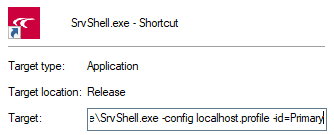
- Click OK.
- Move the shortcut to the desktop (or to another location).