
Disabling Security
Before setting up PASS Real Time Views, may need to disable security.
Before you begin
About this task
Important: After setting up the Administrative user, re-enable security. While security is disabled,
authentication is not required for any system user.
Procedure
-
In the Service Shell window, click .
The Trace Options dialog box appears.
-
On the Switches tab, expand the Core
folder and the Security folder.
Security options appear.
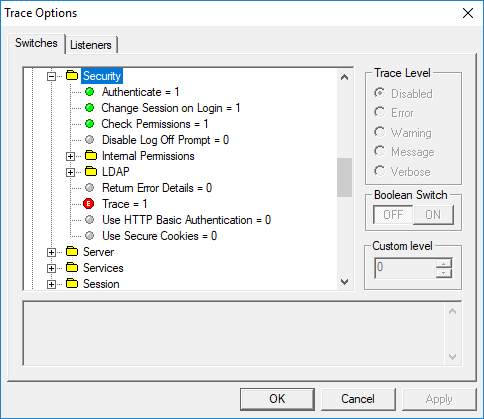
- Click Authenticate.
- In the Boolean Switch frame, click OFF.
- Click Check Permissions.
- In the Boolean Switch frame, click OFF.
- Click OK.