
Setting Up the Configuration Screen
When the Configuration screen is used for the very first time, it may need to be set up so that the appropriate Rapid Response ancillary data are shown for each user group.
Before you begin
About this task
Procedure
- In the Main Menu, click Config.
- Click the Edit Links button:
-
Click the the Edit Links button.

The Links - Configuration dialog box appears.
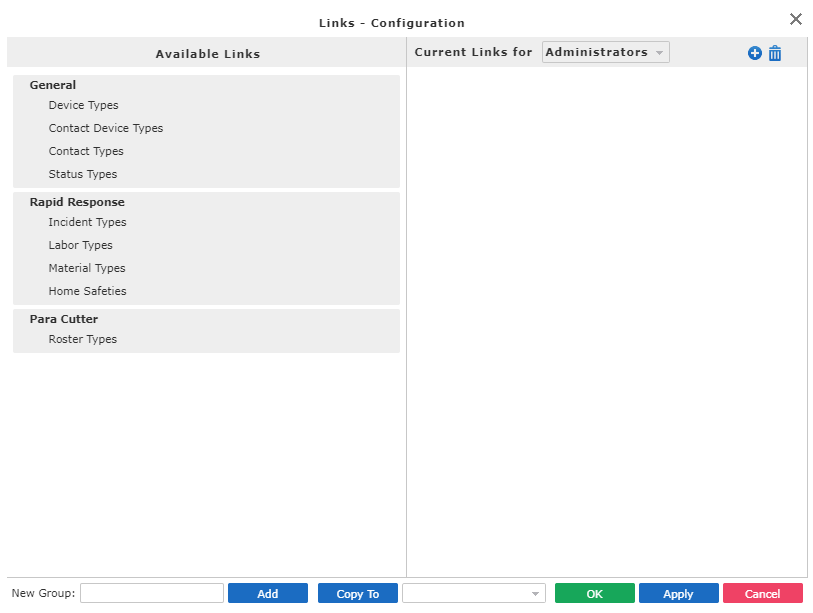
- In the Current Links For list, click the user group for which to customize menus.
- Add the applicable links for each user group as needed.
- Optional: To rearrange the order of screens in a menu:
- Click the screen name in the right-side pane.
- Drag and drop it into the desired location.
- Optional: To add a screen or group of screens to a menu:
- Click the screen(s) in the left-side pane.
- Click Add.
- Drag and drop the screens into the desired location.
- Optional: To remove a screen from a menu:
- Optional: To create a new menu group:
- In the middle of the dialog box, type the name in the New Group field.
- Click Add.
- Drag-and-drop the group name into the desired location.
- Drag-and-drop the desired screens into the group.
- Optional: To copy the changes to another user group:
- At the bottom of the window, click the user group in the Copy To list.
- Click Copy To.
- Click OK.