
Understanding the BlockBuster Web Screen
The first step in using BlockBuster is acquiring a basic understanding of the layout and design of the Runs screen.
We recommend using Google Chrome as your browser although BlockBuster Web also supports Chromium-based Microsoft Edge.
Note: The appearance of your BlockBuster screens may be slightly different from the examples
shown in this guide. The variations are caused mainly by differences in display settings
and/or custom fields.
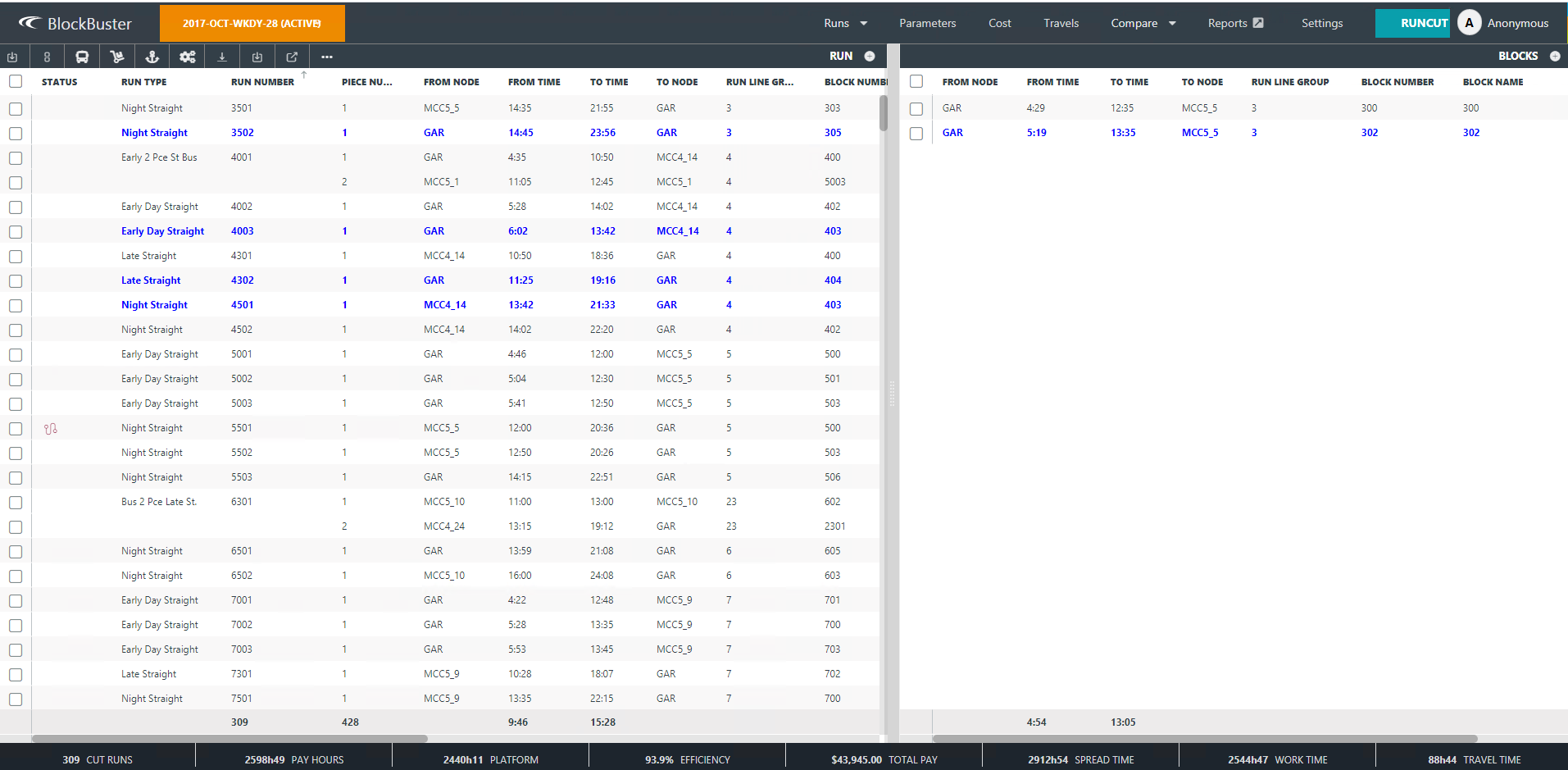
| Screen Component | Description |
|---|---|
| Main Menu | On the right of the upper ribbon, contains links to the main screens. |
| Scenario field | On the left of the upper ribbon, sets the context of the data currently shown on the screen. |
| User Profile icon | On the upper right corner of the screen, shows the name of the user currently logged on. |
| Toolbar | On the second ribbon at the top of the screen; shows the commands associated
with the active
screen. Another toolbar appears at the bottom of the screen in some screens. These show commands that are specific to the screen that is currently open. For example, in the Runs screen, when a run is selected, the costs are replaced by a set of commands that can be used on the active screen. |
| Column Visibility | On the upper right corner of the screen; displays the list of columns that can be displayed on the screen. |
| Grid | Shows data of the scenario currently selected. The grid can be divided into two sections as applicable. The left pane shows the Cut runs and the right pane shows the Uncut pieces, if any. |
| Footer | Shown on the bottom ribbon; mainly shows the costs of the runs of the selected scenario. |