
Viewing Detailed Bus Stop Information
After you select the point whose information you want to view, you can view detailed bus stop information.
-
Search for the bus stop whose detailed information you want to view.
The Points screen lists bus stops that match your search criteria.
-
On the Points pane, do one of the following:
- Click the bus stop whose detailed information you want to view, and then click the
Edit Point button:

- Click the bus stop and right-click and select Edit.
The Edit Point screen appears.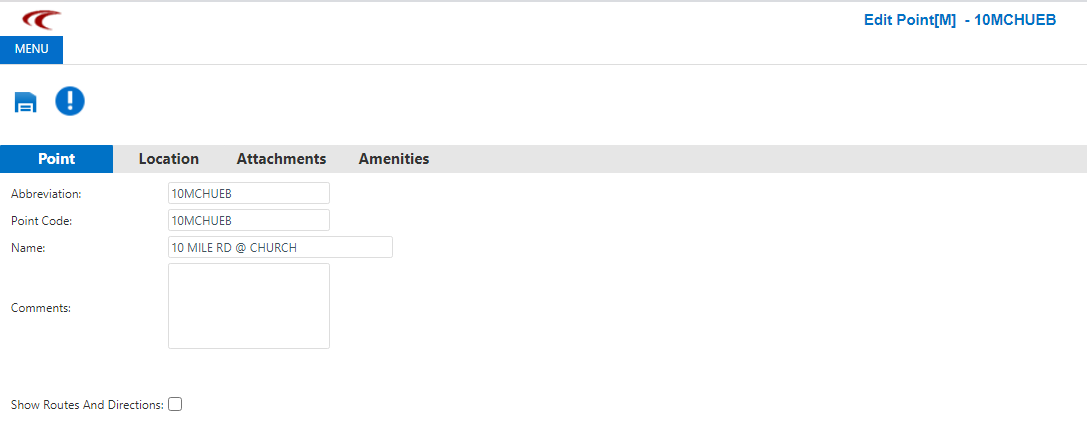 Note: The tab that opens by default when you open the Edit Point screen is set in the BSM/Point/Edit/Default Tab context property. In the sample graphic, the Point tab has been set as the default.The following details are contained on the tabs:
-
Point: Name and comments on the selected stop.
-
Location: Location information for the bus stop and location on a map. The selected point appears as a green placemark on the map on this tab.
-
Attachments: Documents or image files on the bus stop. A preview may be shown on the Preview pane. To view an attachment in its native format, click the document name on the Files pane, and then click the Open Attachment button:
 .
.The system opens the attachment with the Windows application used by default for the file type.
-
Amenities: Amenity and attribute information.Note: The fields on the Amenities tab will be blank if you have not provided or defined the necessary information for the selected stop.
- Click the bus stop whose detailed information you want to view, and then click the
Edit Point button:
- Optional:
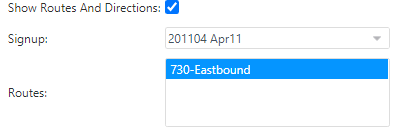
To view the routes that use the selected stop, select the Show Routes and
Directions check box on the Point tab.
The Signup and Routes fields are shown.
-
If you made changes to the data, click the Save button:
 .
.