
Viewing Bus Stops on a Map
After you find bus stops, you can view the bus stop locations on a map in the Points screen. You can view one or more selected bus stops, or all bus stops that are found in a search.
By default, when you open the Points screen, the map is shown on the bottom-right pane. Depending on the zoom level and your system settings, all bus stops in the area might appear on the map.
Placemarks, which are the big dots on the map, represent the bus stops. They are shown in
the following colors depending on the status of the bus stop:
- Blue: Bus stop is in use. This color is set as the default.
- Green: Bus stop is selected in the grid. When you select a bus stop in the Points grid, its placemark is shown in green.
- Red: Bus stop has been deleted. After you delete a bus stop record, the bus stop is still shown on the map but its placemark is shown in red.
-
Search for the bus stops that you want to view on the map.
The Points pane lists the bus stops that match the search criteria.
-
To show bus stop locations on the map, do one of the following steps:
- To show one bus stop, click the bus stop in the grid. The placemark for the
selected stop is shown as a green dot with a blue border on the map.
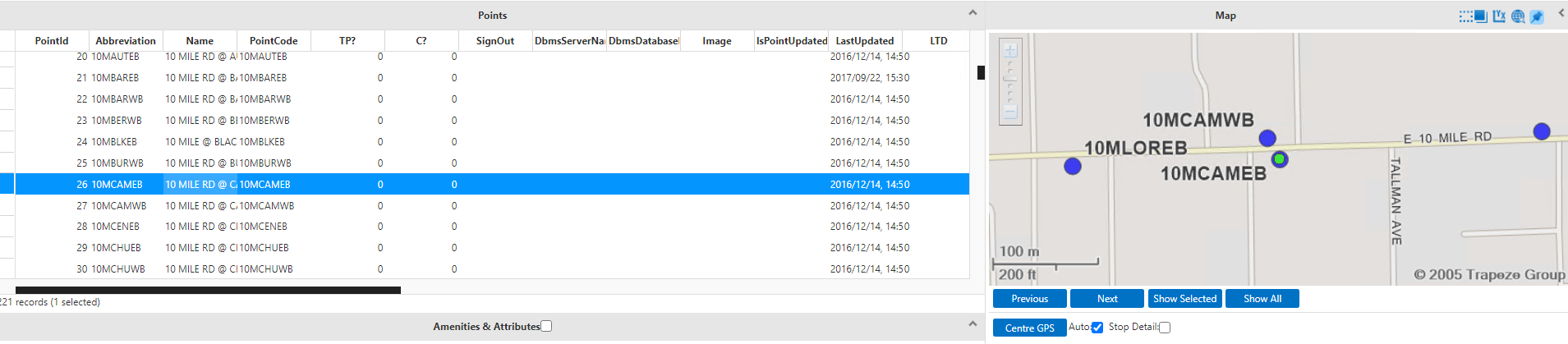
- To show multiple bus stops from the list, press SHIFT and click a range of points in the grid or press CTRL and click to select bus stops in the list, and then click Show Selected. The placemarks for the selected stops are shown as green dots with a blue border on the map.
- To show all bus stops from the list, click Show All. If the bus stop list spans multiple pages, bus stops from all pages appear on the map. Links to map pages are shown on the bottom-right section of the grid.
- To show one bus stop, click the bus stop in the grid. The placemark for the
selected stop is shown as a green dot with a blue border on the map.