
Showing GPS-Related Information
If your system is connected to a GPS, you can show or enable GPS-related information on the map.
- To move the center of the map to where the GPS in use is centered, click Center GPS.
- To check on GPS readings (mainly when troubleshooting), click GPS Info.
- To continually have the GPS position updated automatically on the map, select the Auto check box.
- To display the information marker of a stop when your vehicle is within the distance set for it to show automatically on the map, select the Stop Detail check box.
-
To show GPS information, click GPS Info.
The following graphic
shows sample GPS information of a selected point:
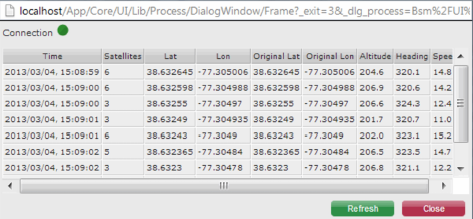
The green dot indicates that the system is connected to the GPS device. A red dot appears if there is no GPS connection.
Note: You can change the zoom level of the map and the area shown on the map.