The appearance of your workspace depends on the features that you want activated or
displayed.
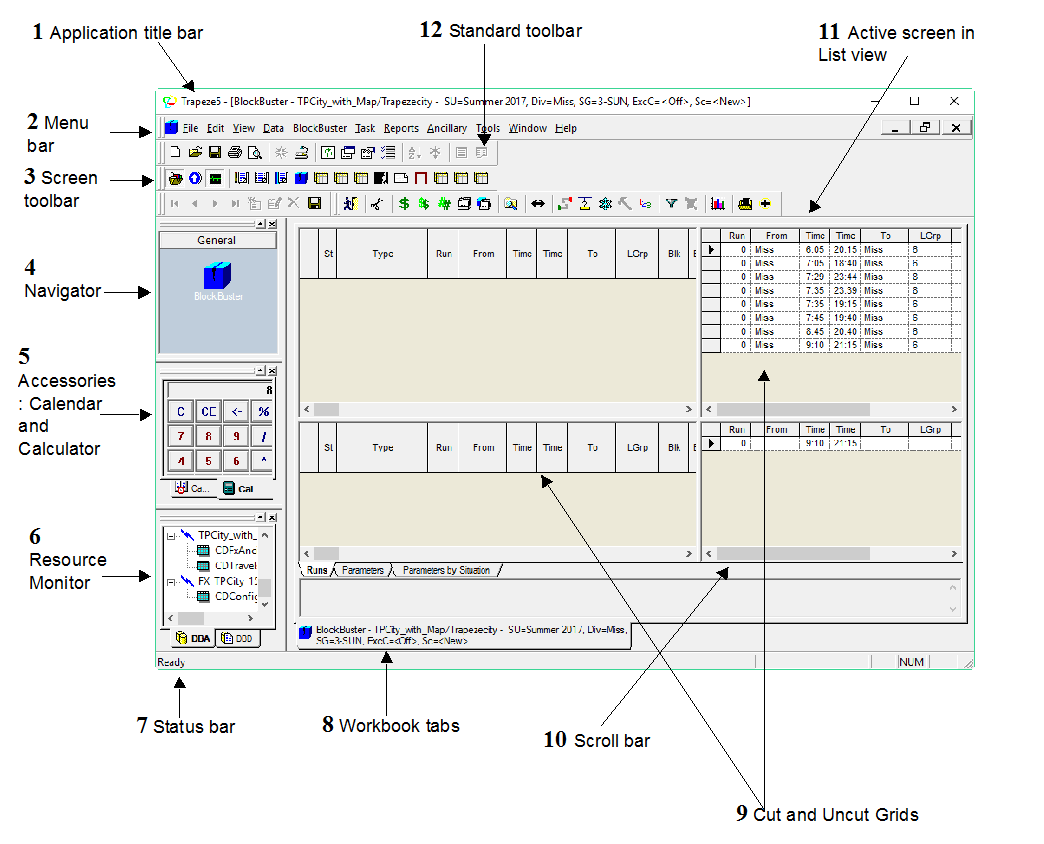
The following graphic shows a sample BlockBuster screen:
The graphic outlines the following
basic components of the screen:
Application title bar: Shows the names of the application
and the screen currently in use. If using a SQL database, the datasource name
and profile name are also shown. Users who have Oracle databases have the option
to display the TNS name (host address). The bar also displays the Minimize,
Maximize and Close buttons at the right end of the bar.
Menu bar:
Typically, it contains ten headings: File, Edit, View, Data, Tasks, Reports,
Ancillary, Tools, Window, and Help.
The content of the Menu bar cannot be altered, however, when a task is opened,
another heading appears between Data and Task. In the example shown in the
graphic, “BlockBuster” is shown between the two menu items. The BlockBuster
menu contains all the options for the BlockBuster screen.
Screen toolbar: Contains the actions
applicable to the active screen.
Navigator: Allows you to open different screens.
Right-clicking on the Navigator provides a shortcut menu that allows you to
choose the size of the screen icons: Large or Small.
Accessories: Include the calendar and
the calculator.
Resource Monitor: Shows you what is happening
behind the scenes of Trapeze5.
Status bar: Indicates the readiness of a screen.
Workbook tabs: Indicate what screens
are open and allow you to access
them. The tabs are: Runs,
Parameters, and Parameters by Situation.
Grid: The table of values arranged in
rows (records) and columns (fields) similar to a spreadsheet that appears in
most screens. The top right grid displays the uncut pieces while the top left
grid shows the runs that have been cut. The lower left grid displays the totals
of the Runs data shown in the top left grid, that is, sum of the time span
columns such as the Platform time.
Scroll bars: Allow you to navigate records that are not immediately visible on the screens.
Active screen: Refers to the screen that
is currently open and in view.
Standard toolbar: Some general
functions available in Trapeze5 are shown as icons in the Standard
toolbar.