
Setting Report Parameters
After you have selected the report you want to run, you must set the parameters to enable the system to determine the data to be included in the output.
Note: Each report has its own set of parameters although many of the
parameters are common to all of them, for example, Agency, Signup Name.
-
Do one of the following steps:
- On the screen toolbar, click the Run button:
 .
. - Right-click on the Reports screen and click Run.
The Enter Parameters dialog appears. - On the screen toolbar, click the Run button:
-
Set the value of the parameter that you want to apply as appropriate:
- Select an option from the list.
- Select a date from the drop-down calendar.
- Select or clear the checkbox to enable or disable the option. If there are checkboxes beside each option, you can select more than one. To select all, click the checkbox beside the header of the list:
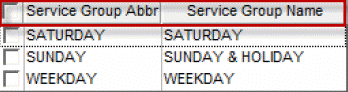
- Type the value in the field, for example, type a date in the Effective Date field.
- Browse the file directory and select a file, for example, for the CSV File Directory field.
Note: Some fields are only enabled after you have set a value to a prior field, for example, in the Block Statistics report, you must select a sign-up period (Signup Name) before the Line Group Abbr field is enabled. - Click OK.