
Deleting Trips

Selecting trips gives you the option to select data items associated with specific lines and services you want to delete.

Select the appropriate sign-up period in the Context (F3) dialog box.

If you do not select an item, which has an essential relationship to an item you have marked, the system automatically marks that item. For instance, if you only select Trips, Shifts and Stop Trips are selected as well.

You can delete trips associated with specific lines and services.

  1. Click File > FXDelete.
    The FX Delete - Select Context view opens.
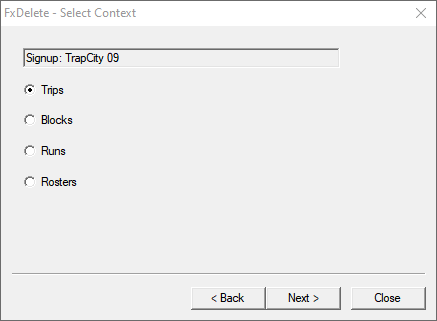
    FX Delete - Select Context view
  2. In the Select Context view, select the Trips option.
  3. Click Next.
    The Select the items to be deleted view opens.
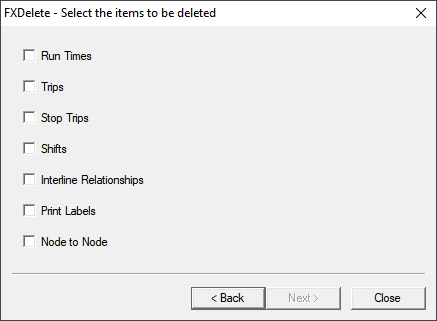
    FX Delete - Select items to be deleted view
  4. Select the check boxes beside the items you want to delete:
    • Run Times
    • Trips
    • Stop Trips
    • Shifts
    • Interline Relationships
    • Print Labels
    • Node to Node
  5. Click Next. The Select Service and Lines view opens.
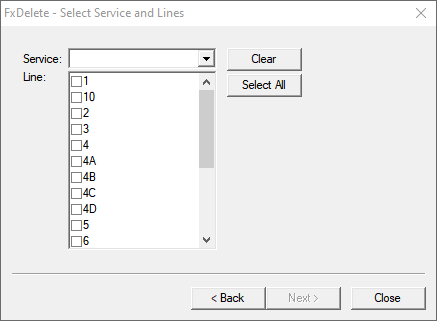
    Select Service Lines view
  6. In the Service field, select a specific service.
  7. Do one of the following steps:
    • Select the lines of the trips you want to delete.
    • To check all lines at once, click Select All.
  8. Optional: To remove all check marks, click Clear.
  9. Click Next. The Delete status view appears.
  10. Click Delete. When the deletion is complete, the view shows "Finished delete."
  11. Click Close.