Place text in quotation marks for exact match search results.
Changing Transfer Tool Display Values
The default values that appear in the Transfer Tool screen are set
in Properties in the FX Properties and in the Transfer Tool
screen.
Note: For the FX Properties, click File > Properties > Tools > Transfer Wizard > Scale Values. For more information on the Transfer Wizard, contact your Trapeze
representative.
In the Transfer Tool screen, do one of the following steps:
Click File > Properties.
Click Properties: .
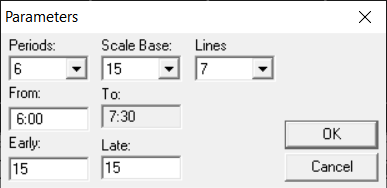
The Parameters dialog box appears.
From the Periods drop-down list of the
Parameters dialog box, select the number of time intervals you want
to see on the graph.
The time periods (for example, 6:00 to 6:15, 6:15 to 6:30) appear as labels at the
bottom of the graph.
From the Scale Base drop-down list, select the number of minutes
for each time period.
From the Lines drop-down list, select the number of lines
(routes) that you want displayed on the screen at one time.
The lines (routes) are shown as physical lines on the graph.
In the From field, enter the start time of the time range you
want to see.
The system automatically determines the end time based on the numbers you selected in
the Periods and Scale Base fields. For
example, the To field of the Parameters dialog
box shows the time of 7:30. It is 90 minutes (6 x 15) from the From
time of 6:00.
In the Early field, type the length of time within which you
want to see trips that meet at the selected node before the center line of the
rectangle.
The value you type determines the time span covered by the left side of the
rectangle.
In the Late field, type the length of time within which you want
to see trips that meet at the selected node after the center line of the rectangle.
The value you type determines the time span covered by the right side of the
rectangle.

 .
.