
Exporting Spatial Data
You can export fixed route data to a specified format using the Spatial Data Export dialog box.
-
Click Tools > FX Tools > Spatial Data Export.
The Spatial Data Export dialog box appears.
-
In the Export frame, select the items you want to
export.
As you select an item, the attributes associated with it appear in the Fields frame and the output file is shown in the Output field.Note: Single file ASCII export is not currently supported for Lines and Patterns.
- From the Signup list, select the appropriate sign-up period.
- In the Service Groups frame, select one or more service group that you want.
-
In the Fields frame, select the attributes that you want
to export.
At least one field for each export must be selected. Select at least one that will identify the data, e.g., Line Abbr for a Line export.
- To select all attributes, click All.
- To remove all check marks, click None.
-
From the Format list, select a format:
- Ascii Delimited
- MapInfo
- KML
- ArcInfo (if available)
-
Select where the coordinate data is to be saved:
- Separate File: Places the coordinate data in another file.
- In Attribute File: Adds the coordinate data to the Attribute file.
If you selected Lines or Patterns in the Export frame, only the Separate File option is enabled. -
In the Delimiter field, assign a delimiter.
The default is a comma (,).
-
From the Lines frame, select the lines you want.
This applies to all export items except for the Stops export.
- Optional:
If you selected Stops by Pattern or Nodes by
Pattern for export, select the Export
Distance check box.
The tool produces the available pattern or stop pattern distance on a node-to-node or stop-to-stop basis. The first node or stop of the pattern does not have any distance in the attribute file. To produce the total distance for patterns, you must make sure that the appropriate field attribute such as Distance is marked in the Fields frame.
- Optional:
To change the output filename for the current export and the location of where
to place the file, click Select.
You can change the file name only, since the export must apply the extensions set by default based on your Format output type (for example, ex1 and ex2 for ASCII and mid, mif for MapInfo). Navigate to the file directory where you want to save the file.
-
Click Save.
The Open dialog box appears.
-
Type a name for the file and click Save.
The Save/Load dialog box appears.
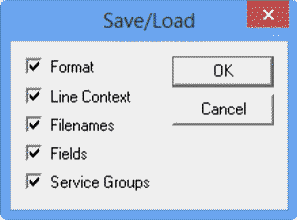
- Click the items you want to save with the file and click OK. The file is saved with an xcf file extension.
-
To export data with the same configuration that you previously selected, click
Load in the Spatial Data Export
Tool dialog box.
The Save/Load dialog box appears.
- Click the items you want to restore with the file, and then, click OK.
- To export the data, click Export. The data is exported in batches.
-
Click Close.
The export process provides standard latitude and longitude data.