Place text in quotation marks for exact match search results.
Interlining Trips
The Interlining tool contains two tabs: Interlines and
Relationships.
Click Tools > FX Tools > Interlining.
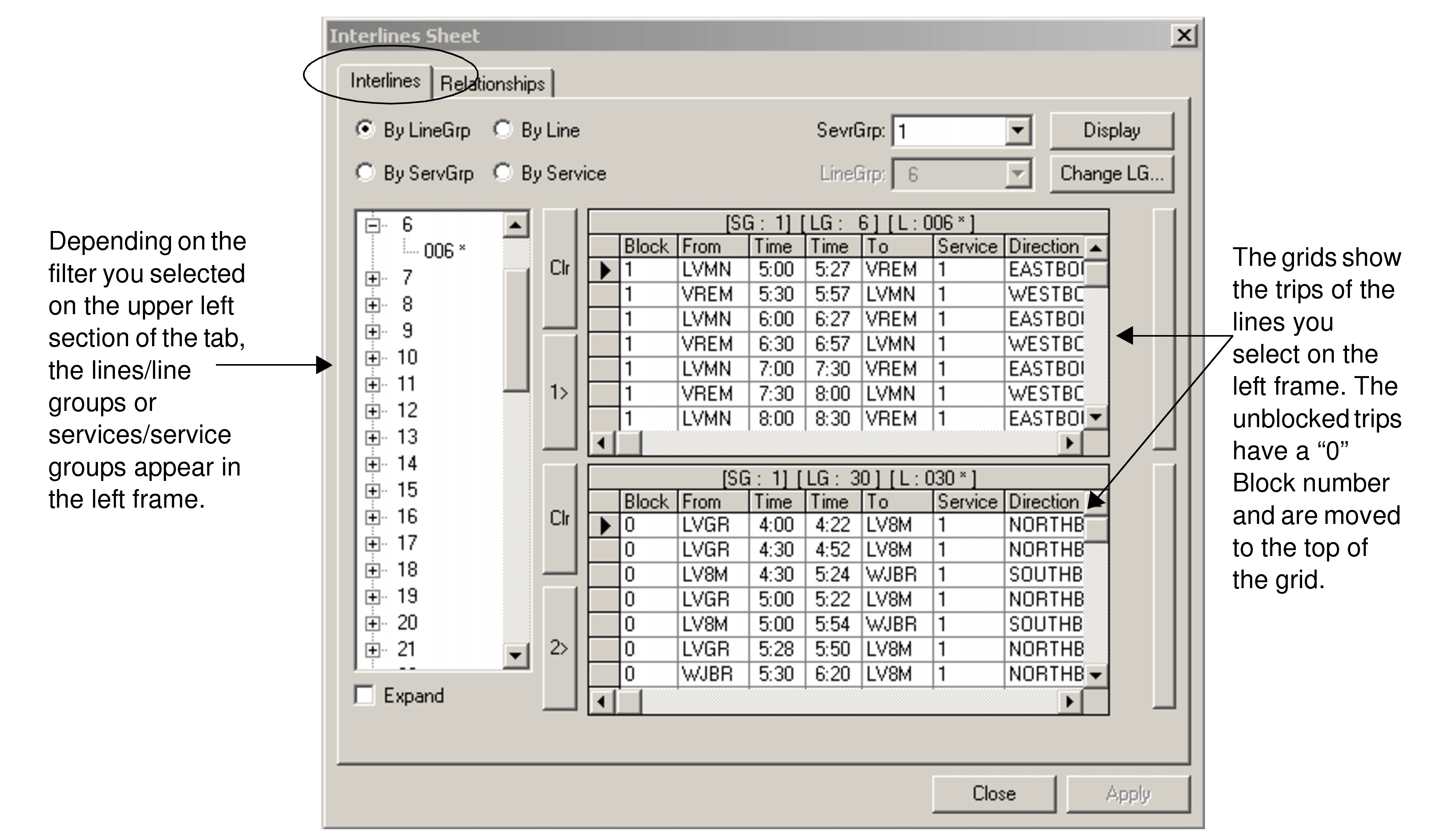
The Interlines Sheet dialog box appears.
To see the list of line groups or service groups in the left frame, do one of the following steps:
Select the By LineGrp or By Line
option and click Display.
The list of line groups appear and
the ServGrp drop-down list is activated.
Select the By ServGrp or By Service
option and click Display.
The service groups appear, the
LineGrp drop-down list is activated, and the
Change LG button changes to the Change
SG. button.
To see the lines or services that belong to each line or service group, select the Expand check box.
Do one of the following:
If you selected the By LineGrp or By
Line option, select the appropriate service group from the
ServGrp drop-down list.
If you selected the By ServGrp or By
Service option, select the appropriate line group from the
LineGrp drop-down list.
The lines or line groups or service or service groups appear in the left
frame.
In the left frame, select the appropriate line and click the
1> button.
The trips associated with the selected line appear in the top grid.
Select the line with which you wish to interline the first line and click the
2> button.
The trips associated with the selected line appear in the bottom grid.
Note: Unblocked trips are shown without a block number and are displayed on
top of the grid.
Optional: To change a selected line, click Clr to remove the line details
in the grid and select another line.
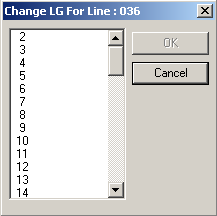
Optional: To change the line group or service group of the selected line or service, click
Change LG or Change SG. Depending on your
selection, the Change LG for Line: ### or Change SG for
Service: ### dialog box appears. (### stands for the specific line or service
number.)
Select the appropriate line or service and click OK.
On the Interlines tab, click Apply.
The interlined trip appears in the Unblocked grid in the
Blocking screen.
Proceed to block the trip in the Blocking screen.
In FX, you can also interline using the Apply button or through
the Line Group ancillary data dialog box.